 Related to this topic, the section Moodle contains a selection of interesting pages.
Create activities (settings)
Example activity: Forum
Below, the basic settings (using the example of a Forum) are described that apply when creating all activities.

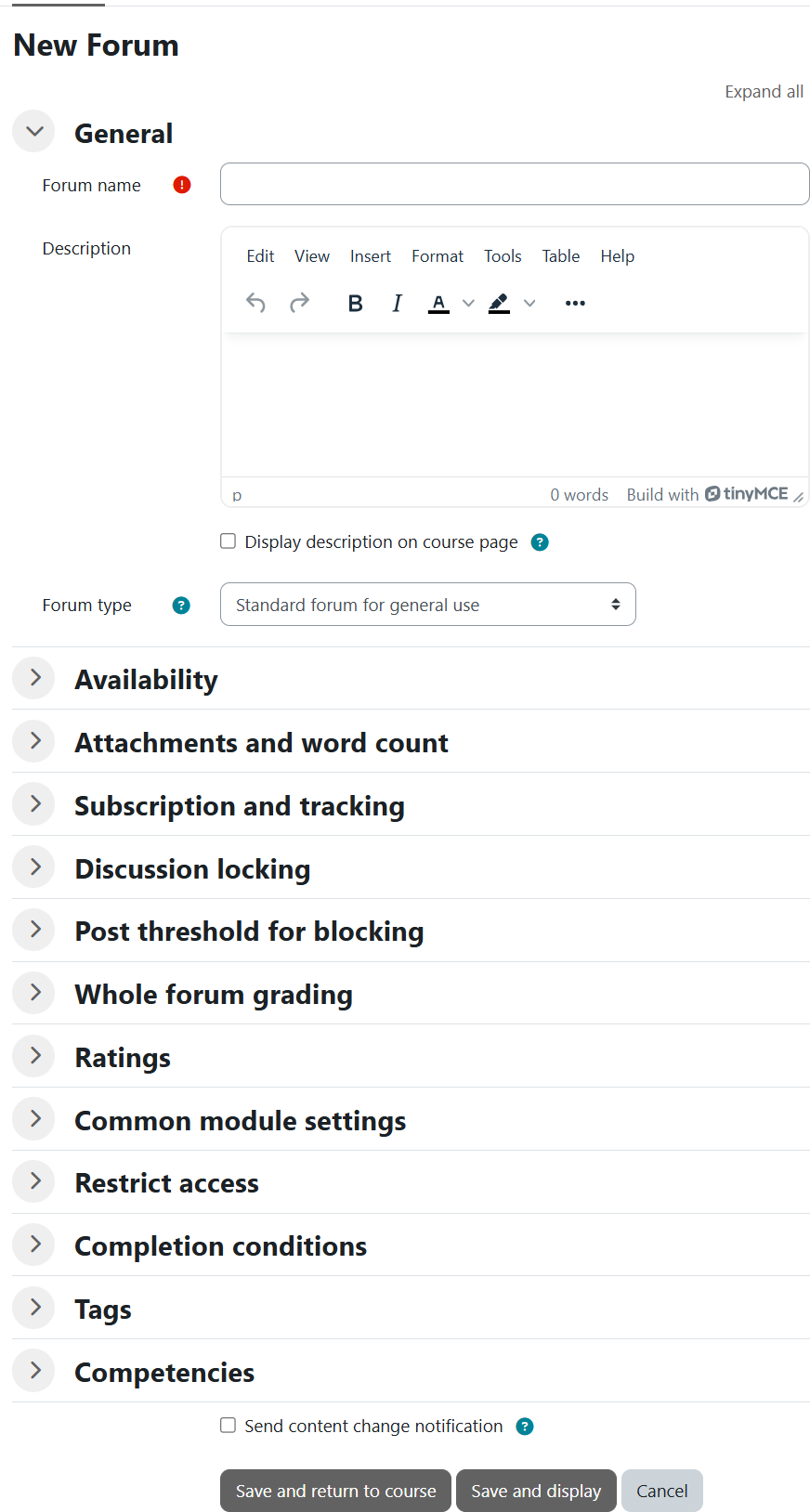 After clicking the Add an activity or resource button
  , select the desired activity and click on it.
Under General, you first define the Name and optionally a Description for all activities — here, the Forum name and a Description. If desired, the description can be displayed on the course page by activating the option Display description on course page.
Under Forum type, you can define the type of forum. If you want a regular forum that allows exchange between participants, keep the setting Standard forum for general use.
In the additional form fields, you can configure various forum-specific options such as Attachments and Subscription and grading options.
The options Common module settings and Restrict access are available in all activities and resources. Here, under Availability, you can define whether the activity should already be available to course participants or still be Hidden. If you are working with Groups, you can configure the corresponding settings here.
If the activity should be linked to specific Restrictions, such as access only at certain times, you can define these criteria under Restrict access → Add restriction.
Finally, save your changes using the buttons Save and return to course or Save and display. The Forum is now created. 
Add a new topic
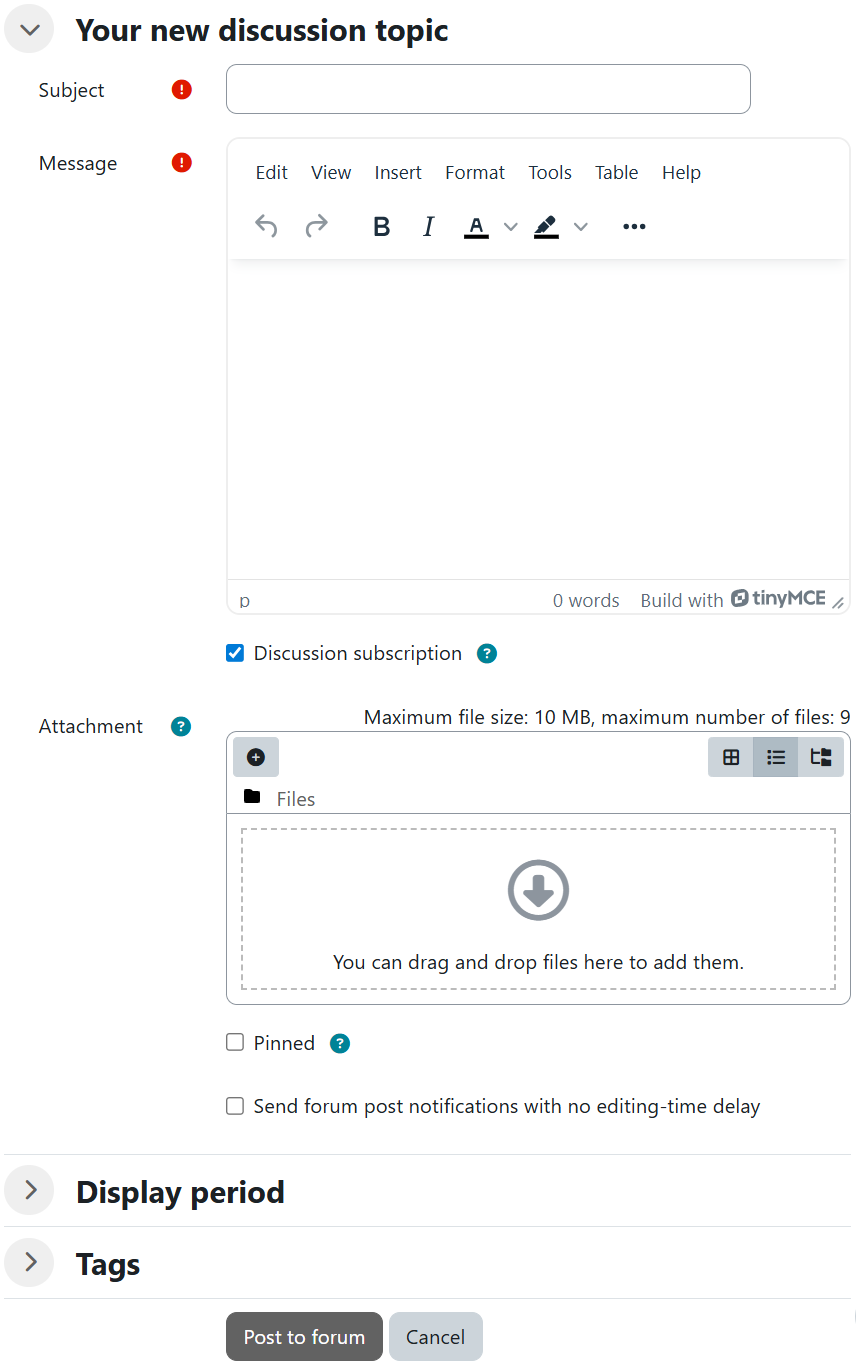 In the forum, you and the students can start a new discussion thread using the Add discussion topic button. Clicking Advanced reveals additional settings.
You can then enter the Subject and the actual Message and format them using the Editor. Under Discussion subscription, you can define whether you want to receive replies to your post by email.
You can also add Attachments. If participants should be informed immediately about the new topic by email, activate the option Send forum post notifications with no editing-time delay. If you select Pinned, the topic will always remain highlighted at the top. The Display period can also be defined as needed.
Click the Post to forum button to create the post.
Reusing an activity
 Moodle allows you to reuse all activities and resources in the coming semester without having to recreate all content from scratch. The procedure is demonstrated using the example of the Quiz activity.
Backup and restore
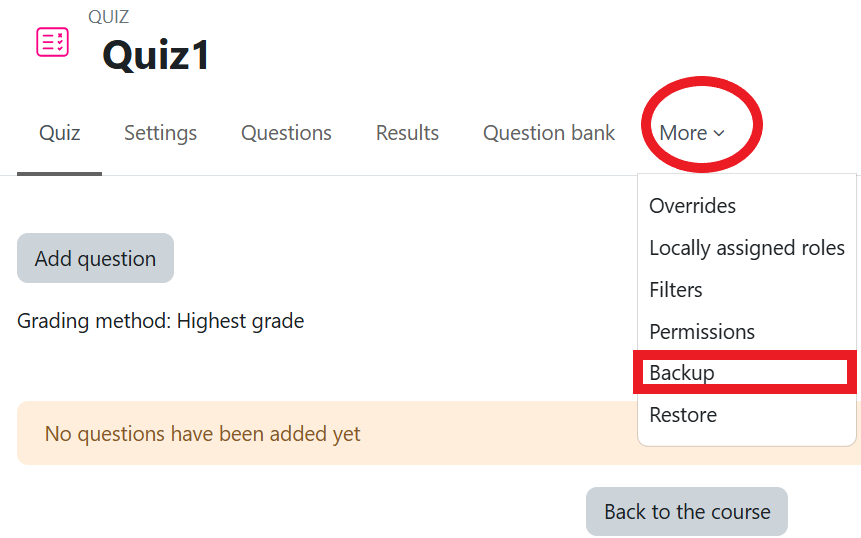
In the quiz, click More in the central menu bar → Backup.
On the following pages, you can decide which settings you want to restore. Elements you do not need (e.g. Competencies) can be removed by deactivating the corresponding checkboxes.
Give the file a clear name with the extension .mbz. 
Clicking Perform backup saves your quiz. 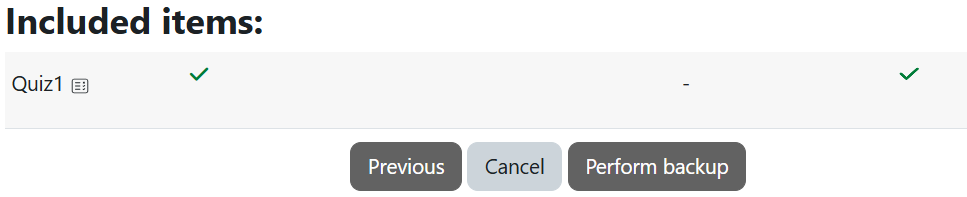
To restore the quiz, click Edit or, in the quiz, select More from the central menu bar → Restore.
Under User private backup area, click Restore next to the desired quiz-backup. 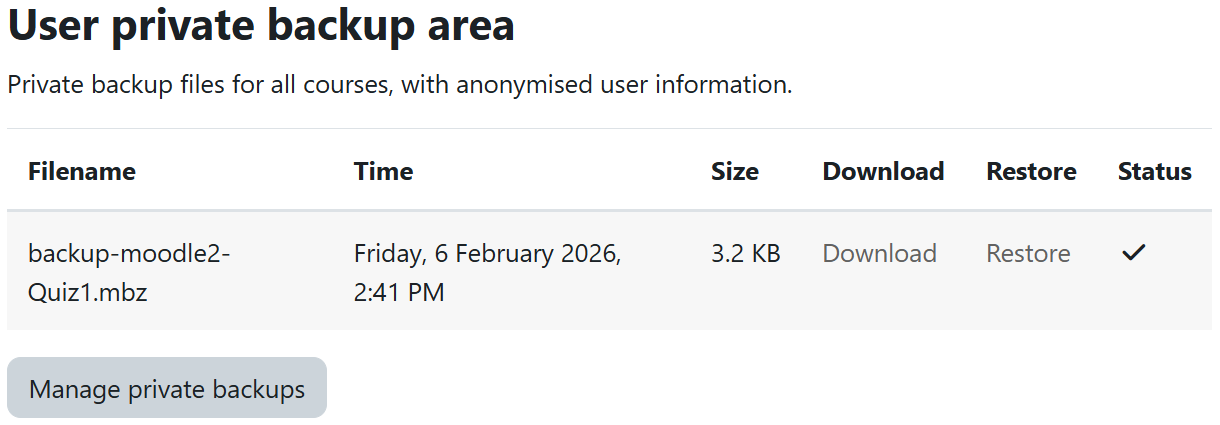
First, select the course in which the quiz should be restored. Click Continue to review the settings and finally select Perform restore.
Import
To reuse and “copy” an activity from one of your existing courses on the current Moodle learning platform, you can use the Import function.
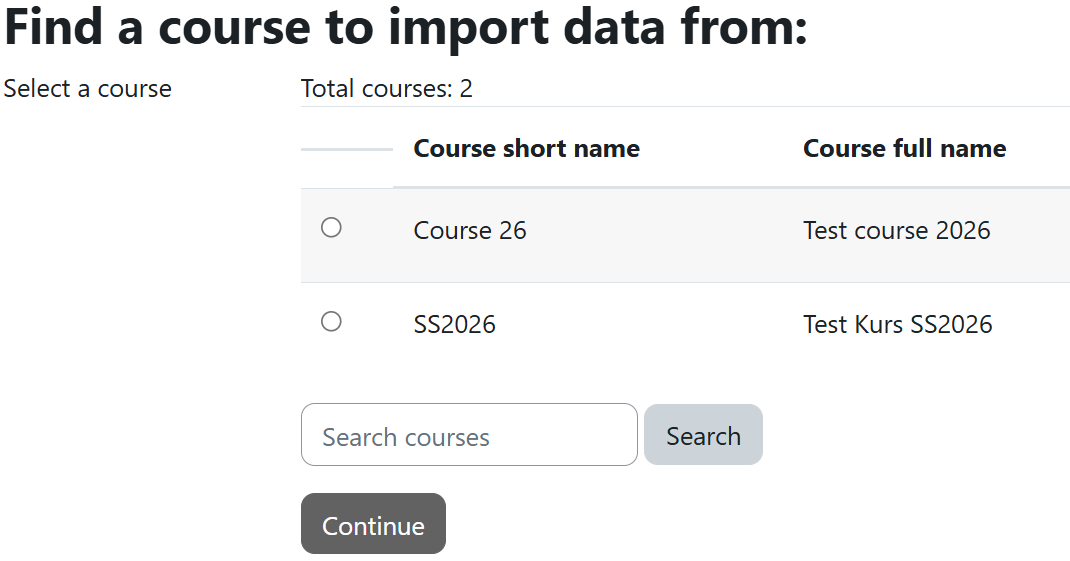 In the course, click More in the central menu bar → Course reuse and then select Import from the dropdown menu. You will be given a selection of courses in which you have course leader permissions. Select the course whose content you want to import and click Continue.
On the following pages, you can decide which settings should be included (e.g. question bank, competencies) and which activities or resources should be restored. Elements you do not need can be removed by deactivating the checkboxes. Alternatively, you can use the option All/None (Show type options) at the top.
Next, you will receive an overview of the elements to be imported. Click the Perform import button to start the import process. You can make changes using the Previous button.
After a successful import, you will receive a green information message. Clicking Continue takes you to the imported/copied course, where you can make further adjustments as needed.
Note: Please note that neither function transfers any user data. All grades and student contributions within the activity, etc., are deleted.