 Related to this topic, the topic Moodle contains a selection of interesting pages.
Access for course participants
To make your course accessible to participants, various enrolment methods are available to you. You can find these in the central menu bar under Participants.
Self-enrollment / Change enrollment key
All newly requested and created courses are assigned an automatically generated 20-character enrollment key (e.g. McZI0EdPi+2&7Q3_BwZv9) to prevent people outside the group of course participants from accessing course content. This course password can be changed at any time and shared with course participants to allow them to enter the course using a simpler password.
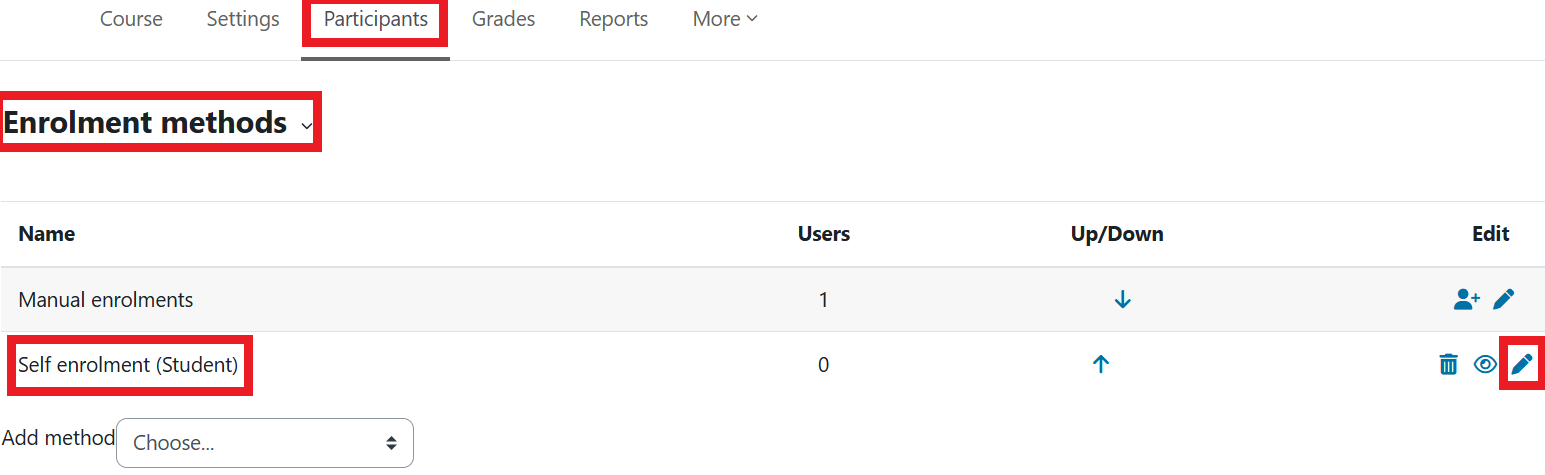
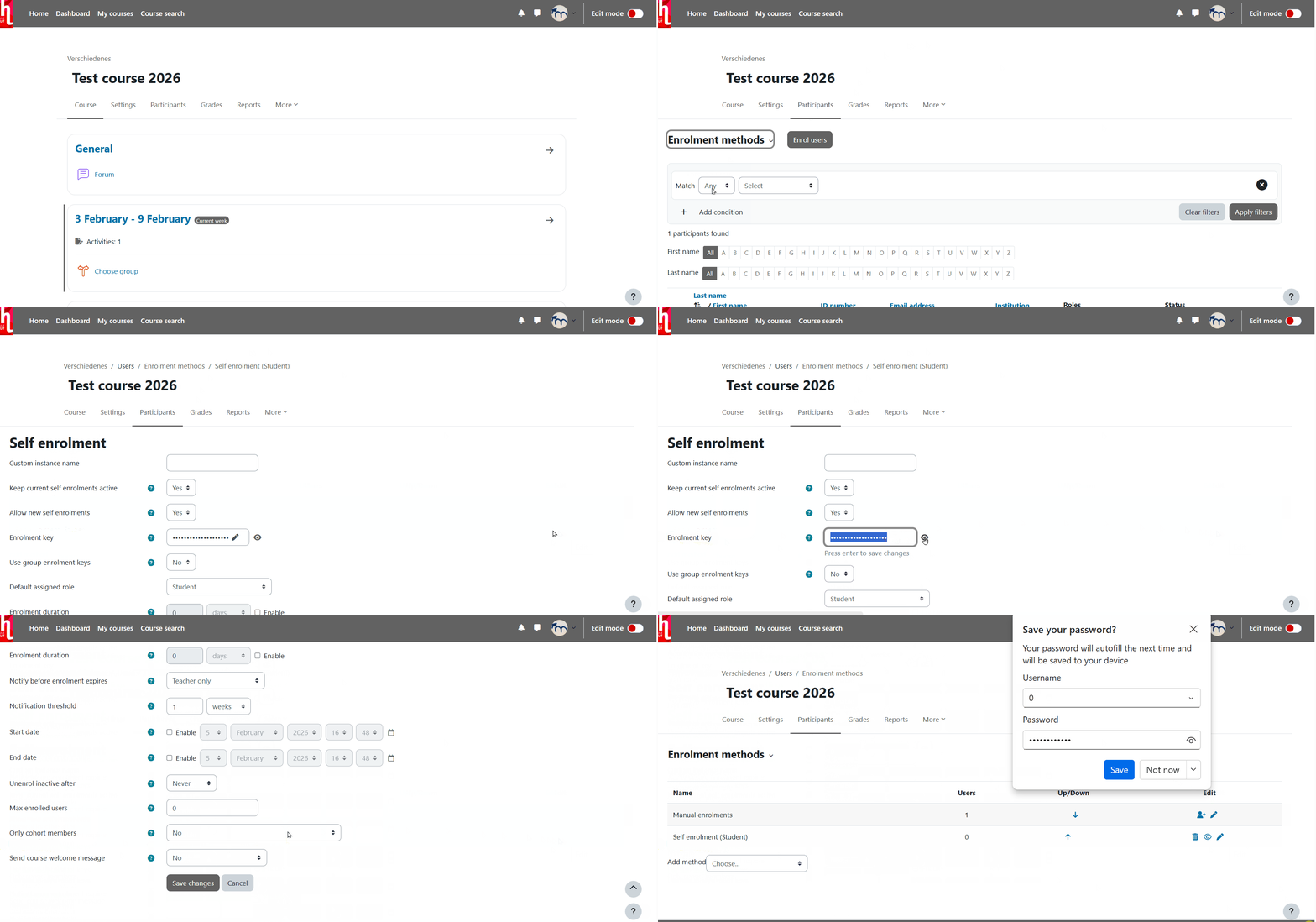
Under Participants, select „Enrollment methods“ from the dropdown menu.
Choose the option Self-enrollment (Student) → Edit ( ).
The page for editing Self-enrollment will open.
).
The page for editing Self-enrollment will open.
Important: Please do not add another self-enrollment method; instead, edit the existing one using the edit gear icon.
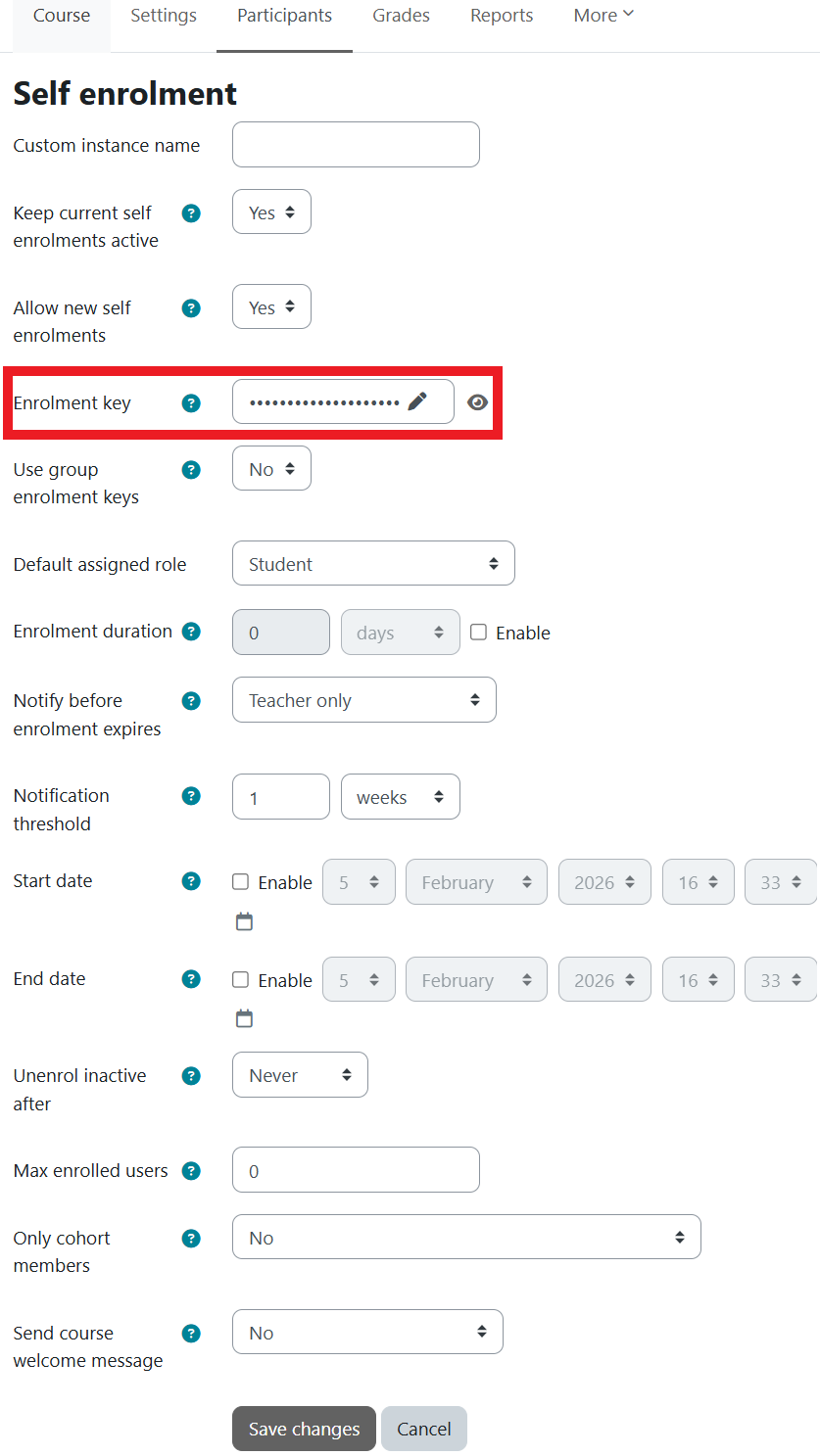
At the fourth item Enrollment key, the automatically generated enrollment key can be changed to the desired one.
Optionally, you can restrict the participation period or enter a welcome message. Finally, save your input by selecting Save changes.
Your course room is now protected with your own enrollment key. Share this key exclusively with the course participants.
Manual Enrollment
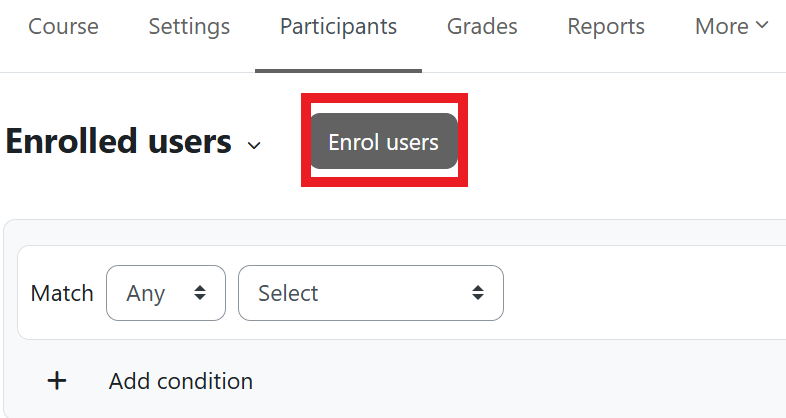
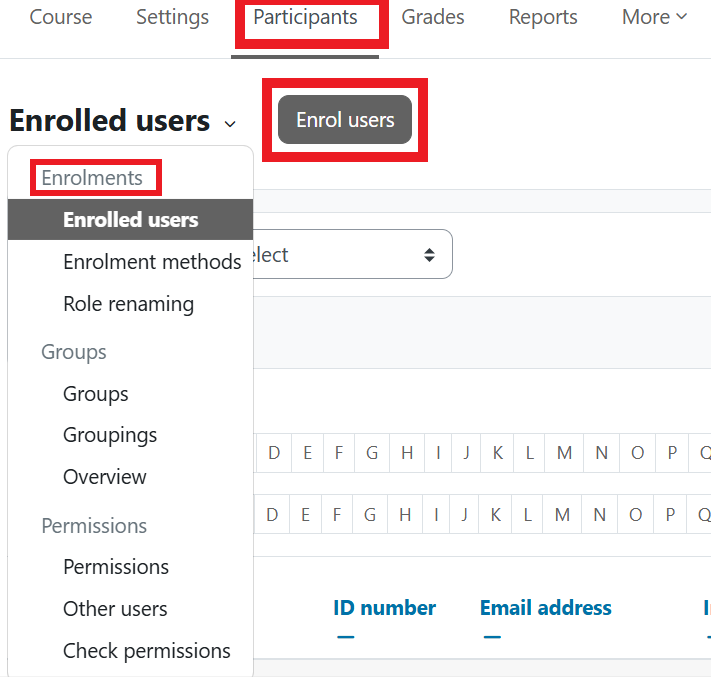
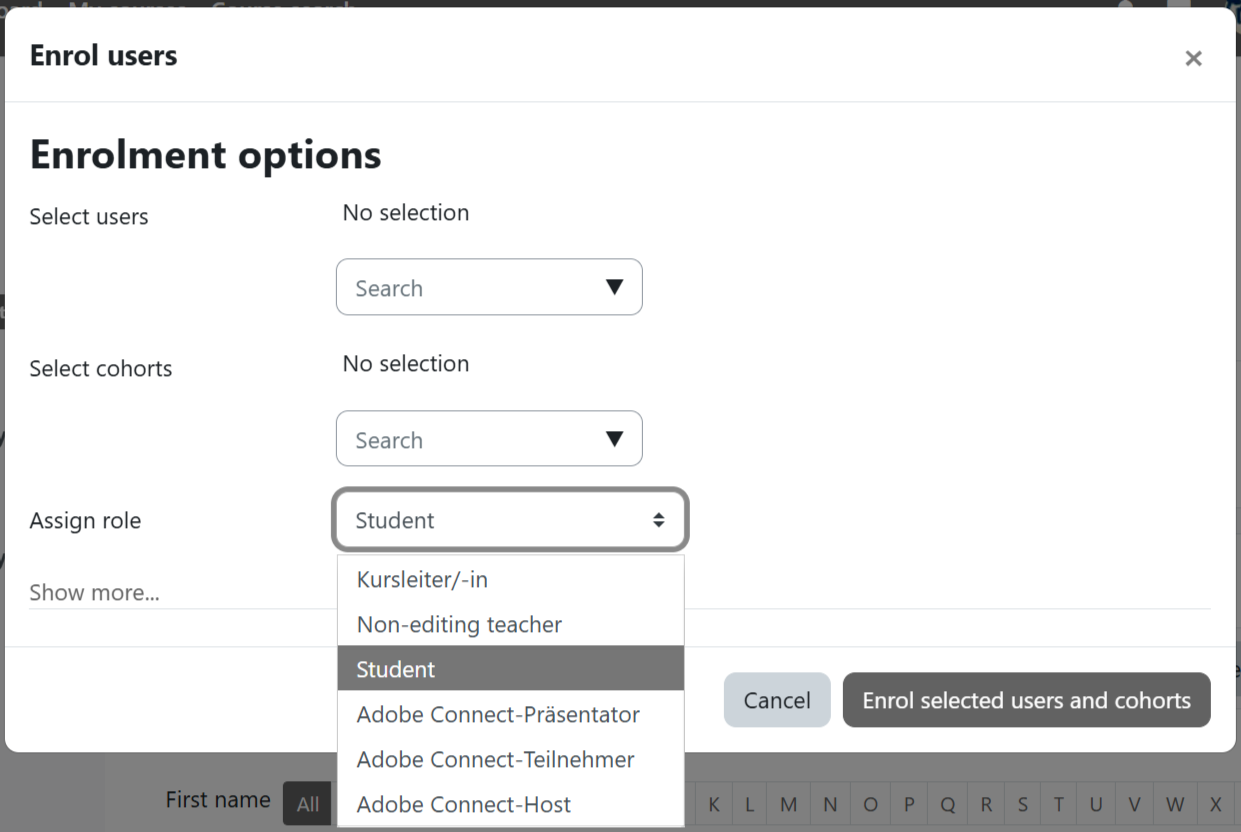 If you want to enroll your course participants manually, you can add them to the course using the
 Enrol users function.
To do this, select Participants in the central menu bar. You will first see an overview of the current course participants.
Clicking the Enrol users button opens a search form where you can enter the names of the desired participants or groups and add them to the course using Enrol selected users and cohorts.
The Role System in Moodle
Through the role system in Moodle, different access and editing rights can be assigned to users. The following roles are relevant for your work with Moodle:
- A Course leader „Kursleiter“ has all permissions in a course, can add content, and grade participants.
- A Non-editng teacher may supervise courses and has grading rights but no editing rights and cannot modify a course.
- A Student generally has no editing rights, can view materials, and participate in activities.
- A Guest can access materials but may not participate in activities. Some courses allow guest access.
In the course you requested, you are automatically enrolled as a Course leader. Students are enrolled in courses with the Student role. If necessary, students can be assigned a different role for specific activities or materials via the activity menu under More > Locally assigned roles, e.g., to provide files via a Directory.
Manage Enrolled Participants
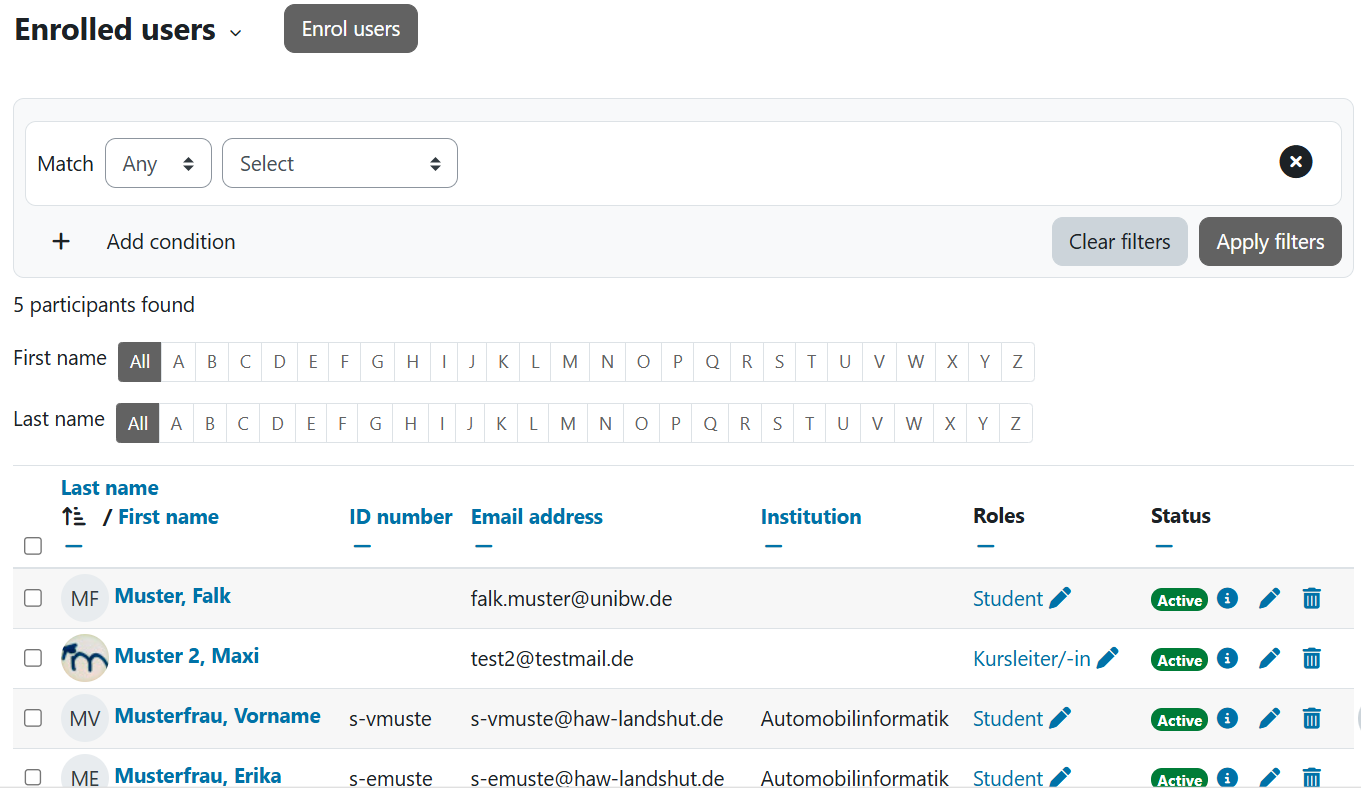
If there are participants in your course, you will find a list of users under Participants. The list can be filtered according to various criteria. If you wish to change roles (e.g. grant Course leader rights to another instructor), you can do this afterwards using the Role assignments icon (). Role assignments can also be removed again using the X.
Switch role
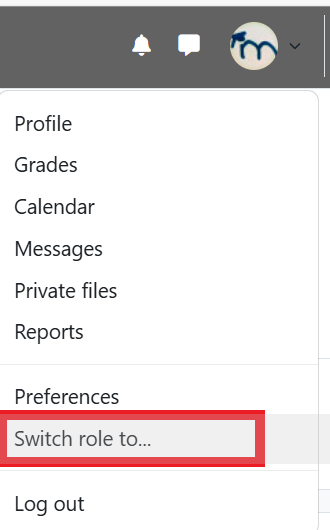
As a course leader, you have extended rights in your course space and see the course interface differently from your students. To check how participants see your course, you can switch to their role and view the course content from the students’ perspective. When adding activities and materials, you should occasionally check the display from the students’ point of view.
Click on your name (top right) to switch your role. You will now see the course from the participants’ perspective, which is indicated by a text field next to your name.
If you want to return to your original role, click on your name and then select Return to original role.
All settings options will then be available to you again, but you must switch the Editing mode back on.