Using the Course Room
Downloading Files
Your course instructors provide the relevant course materials in the Moodle course room. You can download these there. Click on the linked file and save it to your computer or drive.
Important notice: We would like to draw your attention to the copyright of the materials. It is not permitted to share course materials with third parties outside the circle of participants of the course.
Participating in Activities
In addition to providing scripts, Moodle courses may also offer activities from instructors that allow you to participate collaboratively or communicatively in the course, or complete assignments online. Some activities are introduced here.
An overview of additional activities can be found here Activities and Materials

1. FORUM: Writing a Forum Post
 In the Moodle course rooms, you can also communicate with your classmates and instructors outside of class times, discuss specific topics, ask questions, and exchange files. Assignments are often given through the Forum activity. However, note that you cannot reply directly in the course to posts your instructor makes in the Forum „Announcements“ (at the top of the course).
If there is another forum in the course room, click the link to go to the Forum. If posts already exist, they will be listed chronologically. You can either Reply to an existing post or Add discussion topic.
In the text editor that opens, you can write your post under Message. The Subject will appear as the Discussion in the forum overview and as the subject line in the sent email.
To attach files, use Attachment to upload the desired file. Submit your post using the Post to forum button.

2. Participating in a POLL

For group assignments or allocation of presentation topics, a Poll is often set up using the activity Choice. Select an option and confirm your choice with Save my choice.

3. Participating in FEEDBACK
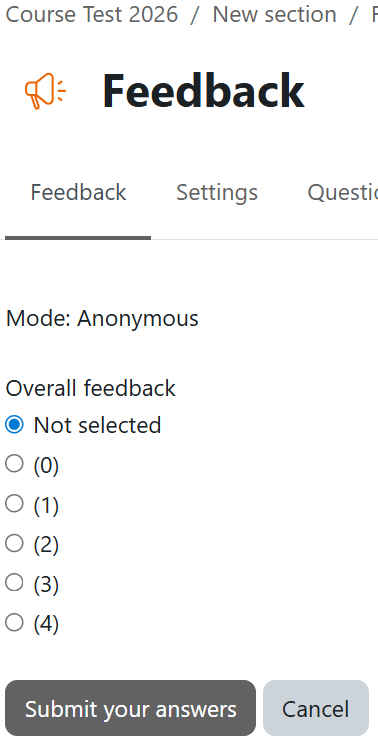 Similar to a Poll, participation in the Feedback activity works in the same way. Click the button
 Answer the questions, answer the questions, and submit your responses with Submit your answers.

4. Submitting an ASSIGNMENT

Your instructor can assign tasks using the Assignment activity, which you must complete, often within a specific period. Typically, you create a file and upload it. Free text entries are also possible.
Click on the Assignment and then on Add submission. Upload your solution file under File submissions. You can simply drag & drop the file into the submission field. Finally, click Save changes. Depending on your instructor’s settings, you may be allowed to resubmit your assignment (Edit submission). You can also leave a Comment under Submission comments.
For the Online text assignment type, you can enter your solution directly in the text editor. Save your input with Save changes. You will be notified when your instructor has provided a grade and feedback.

5. Participating in a QUIZ
 With the Quiz activity, instructors provide the opportunity to check your knowledge and receive immediate feedback on quiz questions. Click on the relevant
 Quiz and then on Attempt quiz. Answer the questions and click Next page until you have completed the quiz, or Previous page to go back.
Finally, click Submit all and finish. Once submitted, you can no longer edit your answers. You will then receive a results overview and can Finish review.