Moodle für externe User
Login mit Zwei-Faktor-Authentifizierung einrichten
Die Anmeldung („Authentifizierung“) in Moodle erfolgt durch eine Zwei-Faktor-Authentifizierung. Die zwei Faktoren sind:
- Faktor: Username + Passwort
- Faktor: Yubikey ODER Authenticator-App
Yubikey
Ein Yubikey ist ein kleiner USB-Stick, der zur Authentifizierung in den Computer eingesteckt werden muss.
Authenticator-App
Eine Authenticator-App ist eine App auf einem separaten Handy. Diese App generiert einen einmaligen Code der für die Anmeldung benötigt wird. Bitte nutzen Sie die Apps: Google Authenticator oder FreeOTP.
Zwei-Faktor-Authentifizierung (2FA) aktivieren
Wenn die 2FA noch nicht aktiviert ist, erscheint auf der Moodle-Anmeldeseite folgende Meldung:

- Klick in dem rosa Kasten auf den Link
Nutzerpräferenzen.
Es öffnet sich diese Seite zur Multi-Faktor-Authentifizierung:

Es gibt zwei Möglichkeiten für den zweiten Faktor: „Authentifizierungstoken“ (=Yubikey) oder „Authenticator-App“. Entscheiden Sie sich für einen der beiden Faktoren.
- Klick auf den greuen Button
Einrichtenin einem der beiden Bereiche („Authentifizierungstoken“ oder „Authenticator-App“).
1. Möglichkeit: Yubikey
Yubikey registrieren
Nach Wahl der Option „Yubikey“, öffnet sich die Seite „Security Key einrichten“:
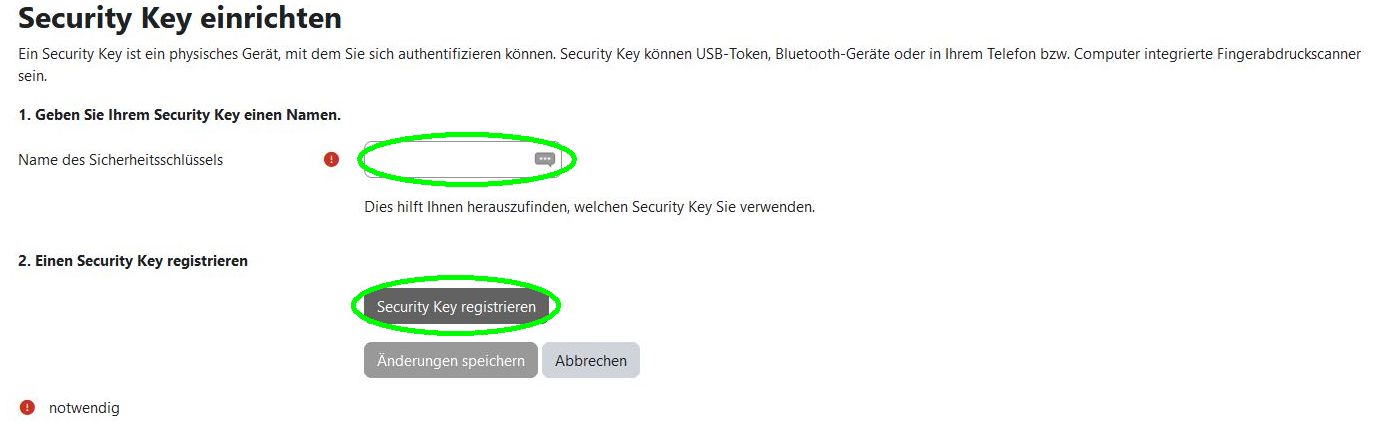
- Im Feld „Name des Sicherheitsschlüssels“ einen eindeutigen
Name des Yubikeys eingeben. (Der Name ist frei wählbar.) - Klick den grauen Button
Security Key registrieren.
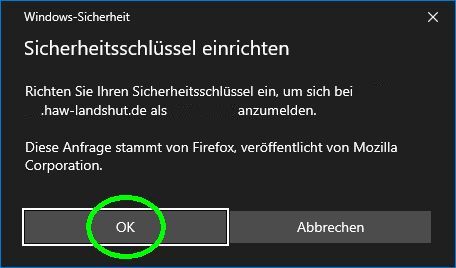
- Bestätige das Popup-Fenster „Sicherheitsschlüssel einrichten“ mit Klick auf
OK.
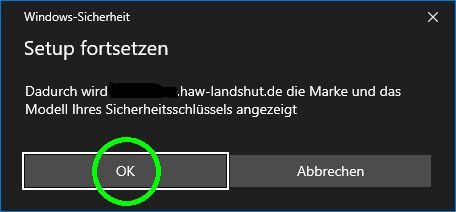
- Bestätige das Popup-Fenster „Setup fortsetzen“ mit Klick auf
OK.
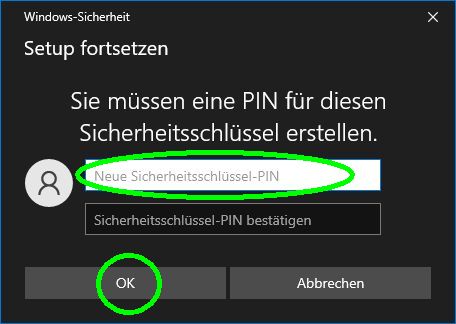
- Im Popup-Fenster „Setup fortsetzen“ einen
PIN eingeben. (Der PIN ist frei wählbar. Der PIN wird später für die Anmeldung benötigt.) - Bestätige mit Klick auf
OK.
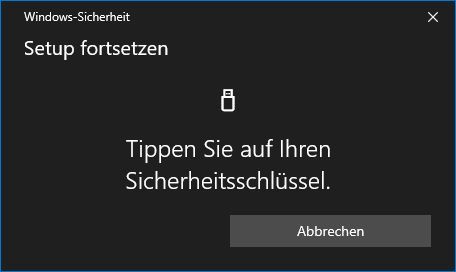
- Beim Popup-Fenster „Tippen Sie auf Ihren Sicherheitsschlüssel“,
tippe auf den Yubikey im USB-Anschluss.
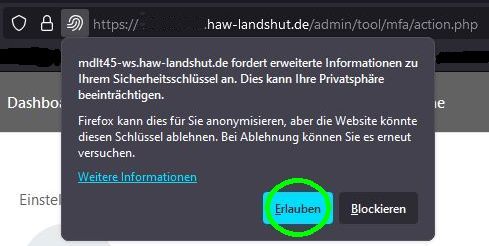
- Evtl. öffnet sich ein Popup-Fenster neben der URL-Zeile im Browser. Klick auf den blauen Button
Erlauben

- Klick auf den grauen Button
Änderungen speichern.
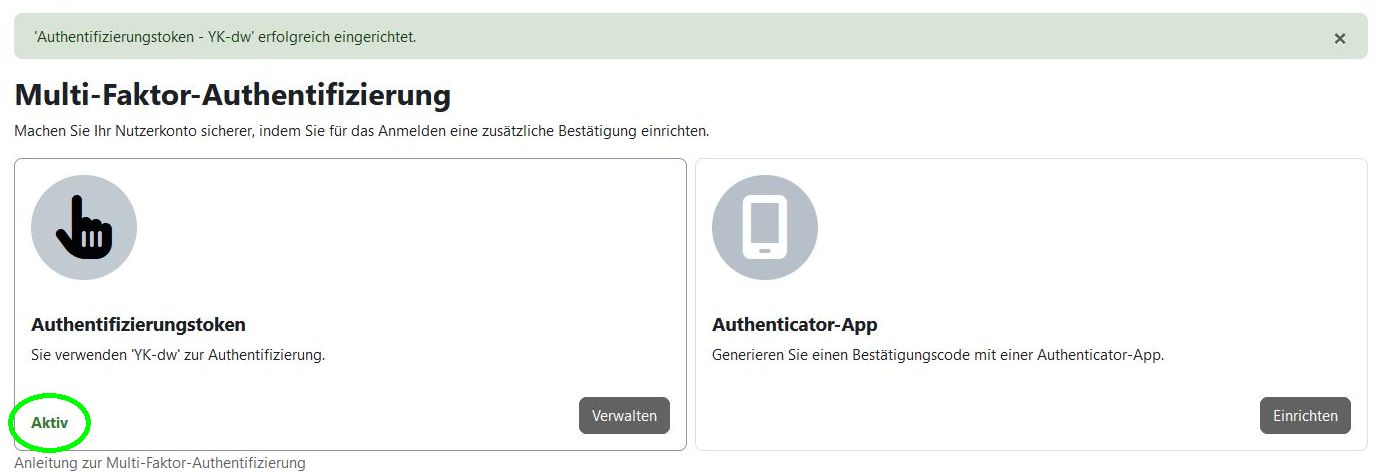
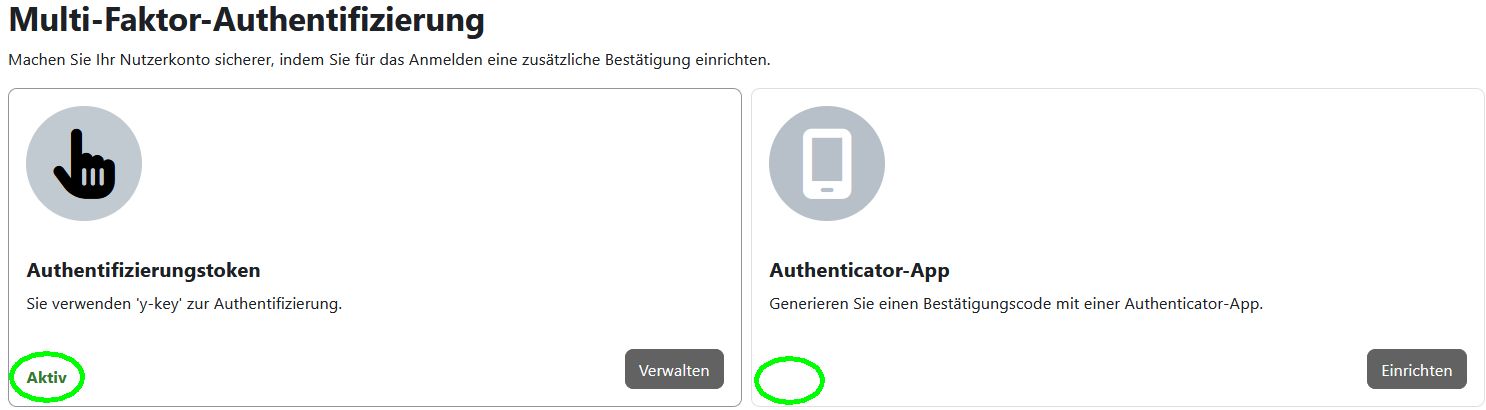
Die erfolgreiche Registrierung des Faktors „Authetifizierungstoken“ (=Yubikey) wird durch das „grüne Aktiv“ angezeigt.
2FA-Login mit Yubikey
- Loggen Sie sich aus Moodle wie gewohnt aus.
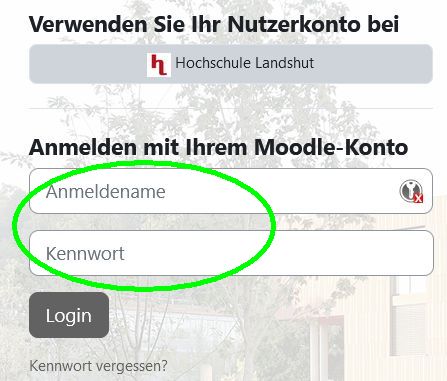
- Login im Bereich „Anmelden mit Ihrem Moodle-Konto“ (nicht „Verwenden Sie Ihr Nutzerkonto“) durch Eingabe von
AnmeldenameundKennwort. - Bestätigen Sie Ihre Anmeldung durch Klick auf
Login.
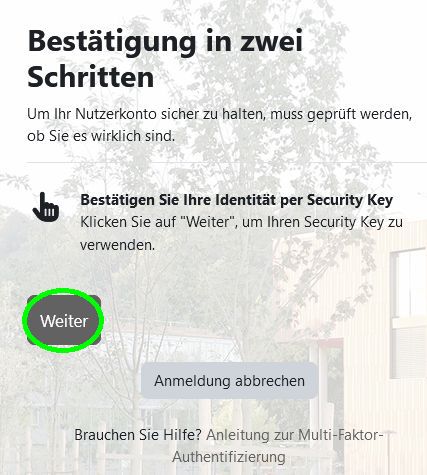
- Es öffnet sich die Seite „Bestätigung in zwei Schritten“-Seite. Klick auf
Weiter.
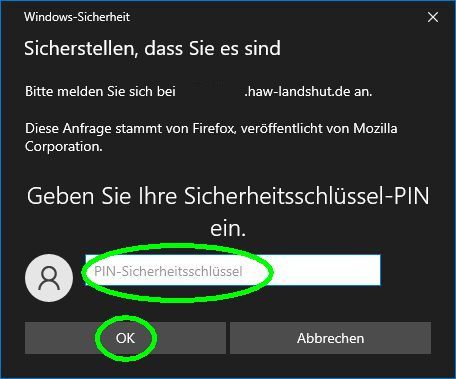
- Im Popup-Fenster „Sicherstellen, dass Sie es sind“, den oben festgelegten
PIN eingeben. - Bestätige den PIN mit Klick auf
OK.
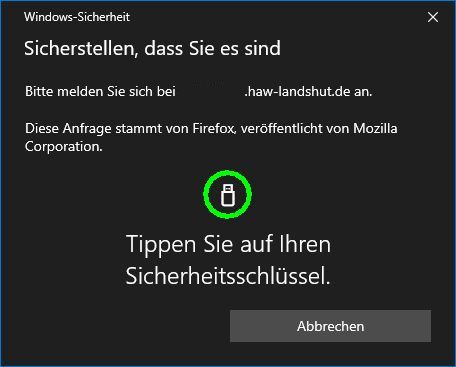
- Wenn das Popup-Fenster „Sicherstellen, dass Sie es sind“,
tippe auf den Yubikey am USB-Anschluss.
Sie sind wie gewohnt in Moodle angemeldet.
2. Möglichkeit: Authenticator-App
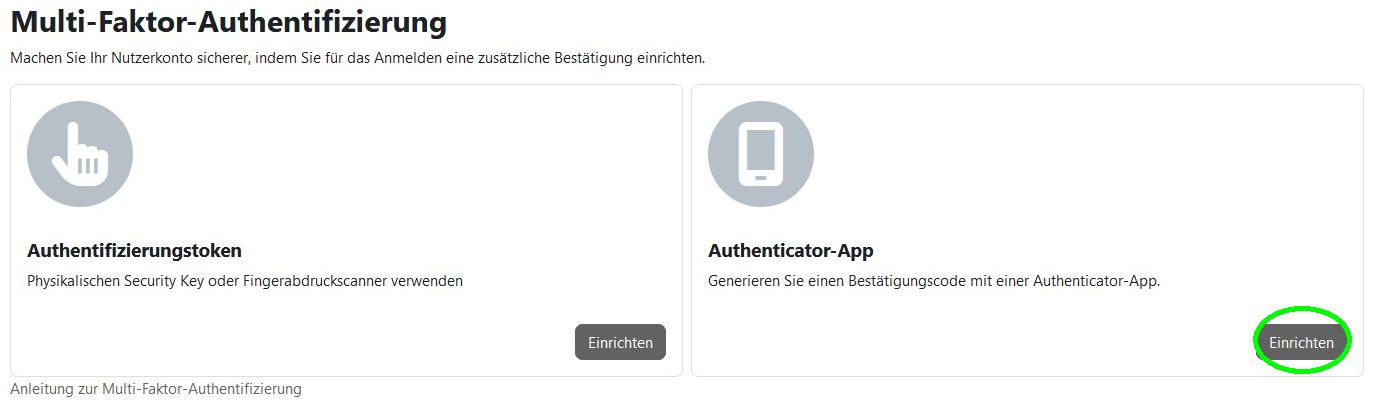
- Klick auf im Bereich „Authenticator-App“ auf
Einrichten.
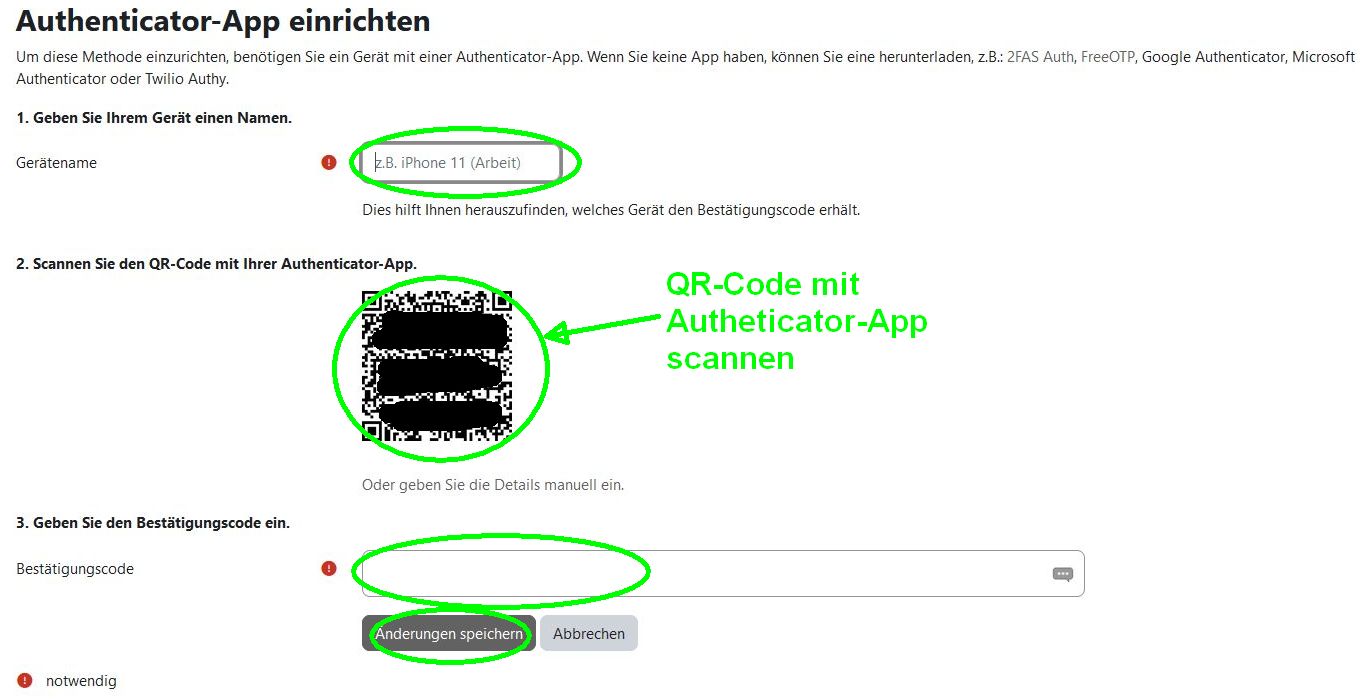
- In das Feld „Gerätename“ einen (frei wählbar)
Namen für das Android-Handy mit der Autheticator-App eingeben. - Öffne die Authenticator-App auf dem Android-Handy und
scanne den QR-Code vom Bildschirm. - In der Authenticator-App wird ein Bestätigungscode generiert. Übertrage diesen
Code in das Feld Bestätigungscode. - Klick den grauen Button
Änderungen speichern
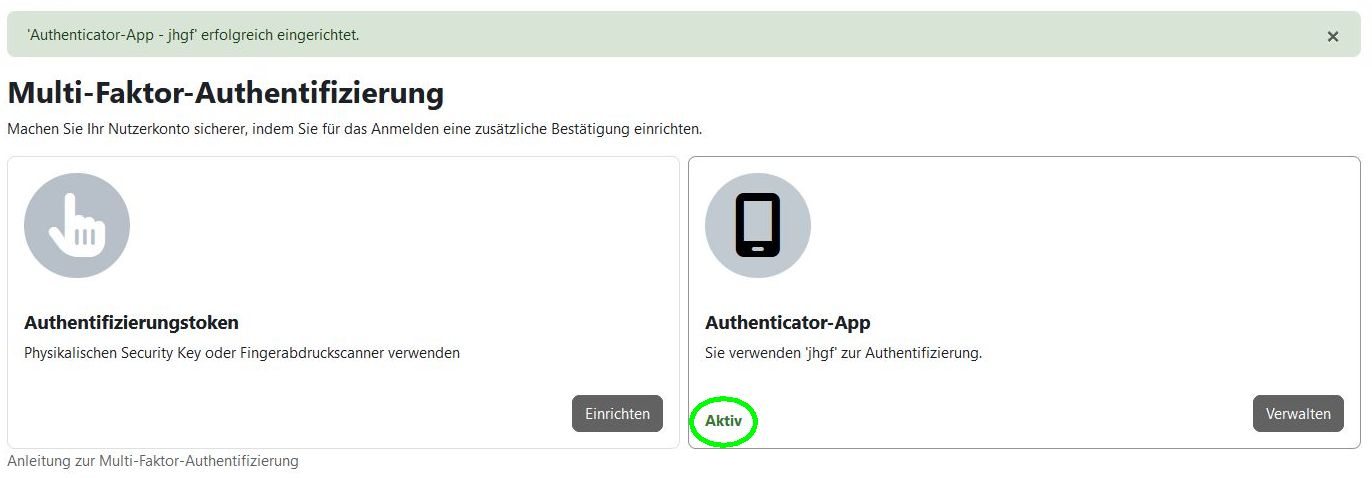 Der zweite Faktor „Authenticator-App“ wird durch das „grüne Aktiv“ angezeigt.
2FA-Login mit Authenticator-App
- Loggen Sie sich aus Moodle wie gewohnt aus.
- Login durch Klick auf
Anmelden mit Ihrem Moodle-Konto(nicht „Verwenden Sie Ihr Nutzerkonto“.)
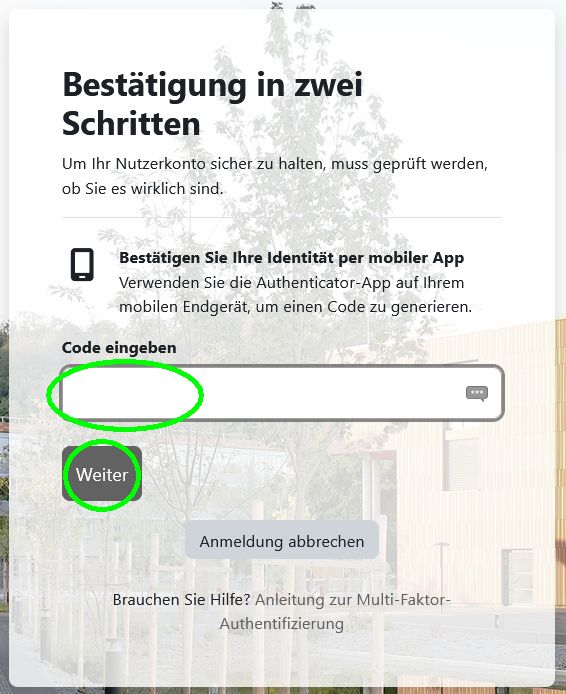
- Es öffnet sich die Seite „Bestätigen in zwei Schritten“-Seite.
- Öffne auf dem Android-Handy die Authenticator-App.
- Gib den Code aus der App in das Feld „Code eingeben“ ein
- Klick auf den grauen Button
Weiter.
Sie sind wie gewohnt in Moodle angemeldet.
Verwaltung der Zwei Faktoren
Sie können den zweiten Faktor auch ändern (z.B. von Authenticator-App zu Yubikey wechseln) oder einen zweiten „zweiten Faktor“ hinzufügen, so dass Sie zur Anmeldung entweder einen Yubikey oder eine Authenticator-App verwenden können.
Wechsel von Authenticator-App zu Yubikey
Melden Sie sich zunächst mit zwei Faktoren in Moodle an.
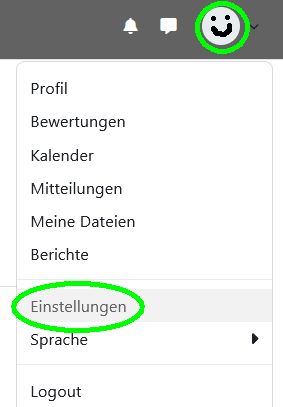
- Klick rechts oben auf den
Kreis mit dem User-Profil. - Es öffnet sich ein Dropdown-Menü. Klick auf den Menüpunkt
Einstellungen.
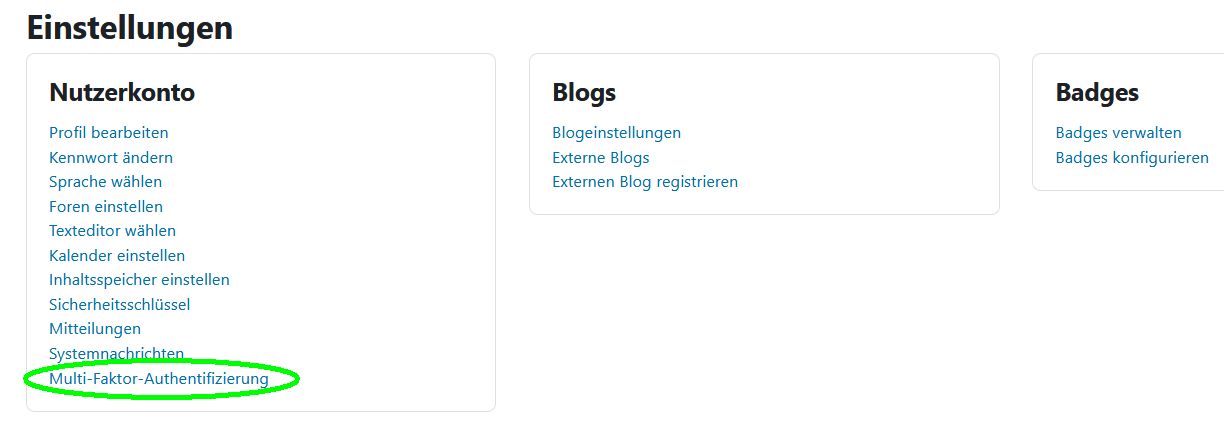
- Klick auf
Multi-Faktor-Authentifizierung.
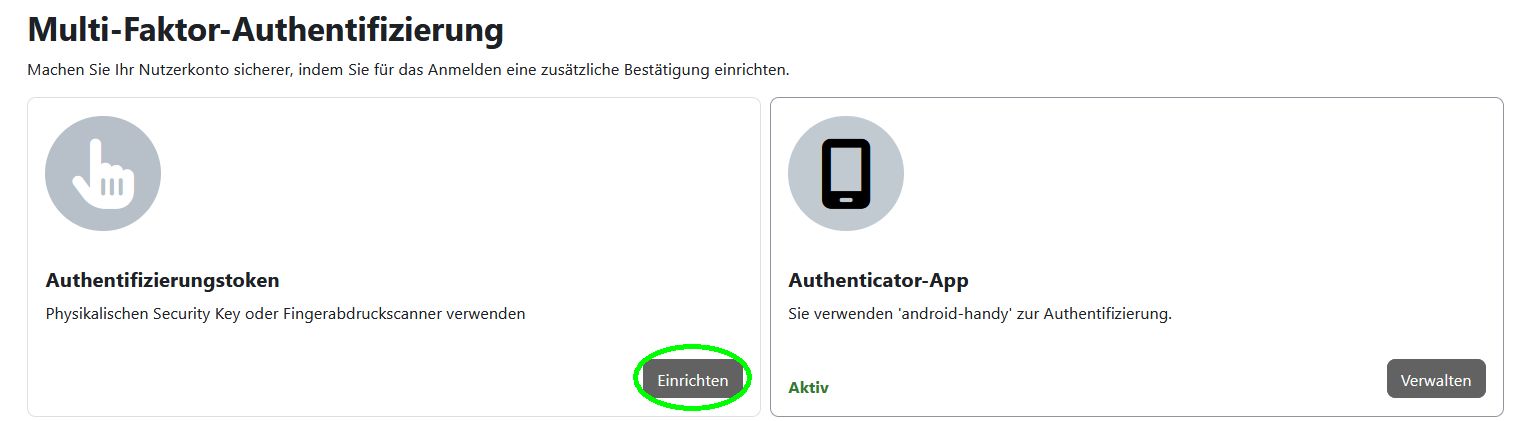
- Klick im Bereich „Authentifizierungstoken“ auf den grauen Button
Einrichten.
Fahren Sie dann fort, wie im Abschnitt Yubikey registrieren beschrieben.
Wenn beide Faktoren „Authentifizierungstoken“ (=Yubikey) und „Authenticator-App“ registriert sind, erscheinen beide Bereiche mit „grünem Aktiv“. In diesem Zustand können beide Faktoren als zweiter Faktor verwendet werden.
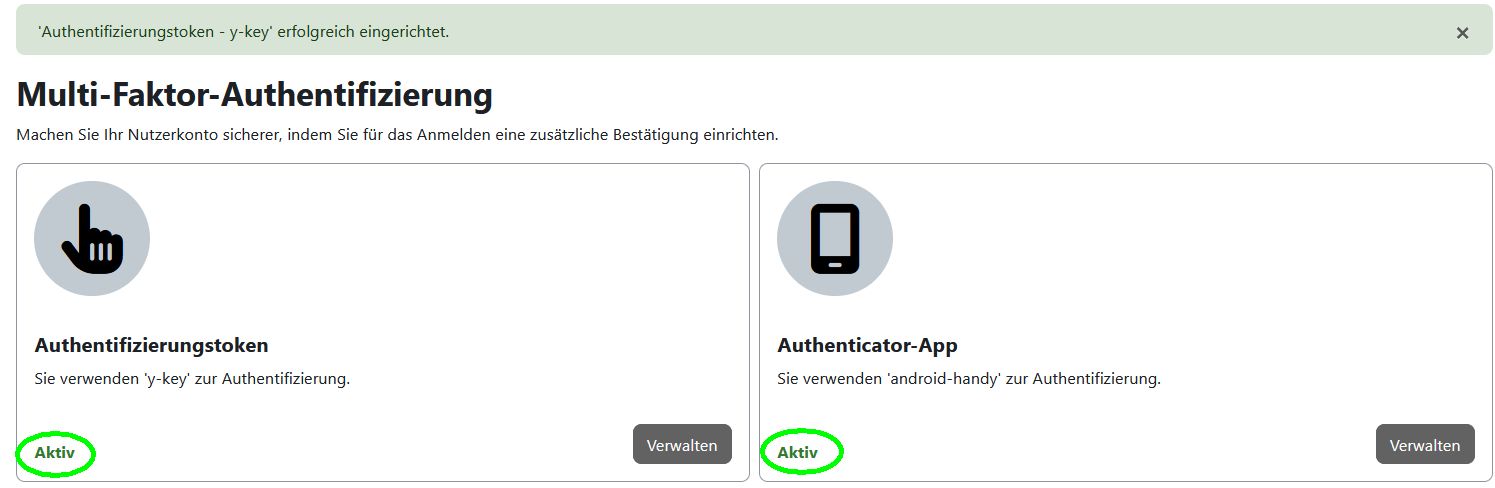
Deaktivieren der Authenticator-App

- Klick im Bereich „Authenticator-App“ auf den grauen Button
Verwalten.

- Klick im Fenster „Authenticator-App verwalten“ auf den grauen Button
Entfernen.
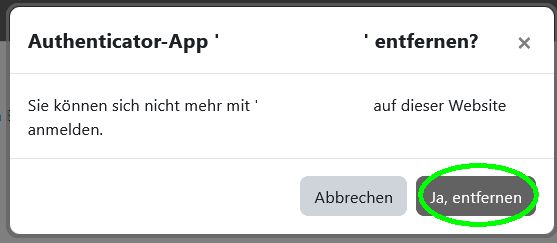
- Klick im Popup-Fenster „Authenticator-App“ entfernen auf den grauen Button
Ja, entfernen.
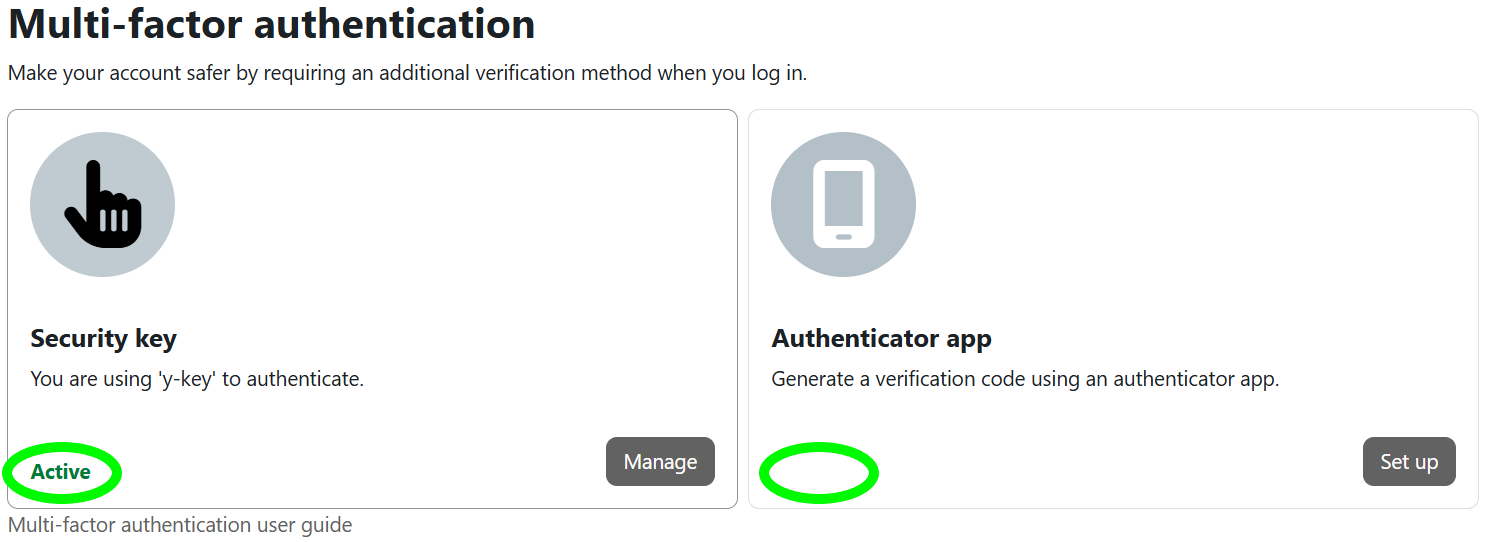
Die Registrierung des Faktors „Authentifizierungstoken“ (=Yubikey) wird durch das „grüne Aktiv“ im entsprechenden Bereich angezeigt. Die Abmeldung des Faktors „Authenticator-App“ ist durch ein fehlendes „grünes Aktiv“ im entsprechenden Bereich zu erkennen.
Der Wechsel vom Faktor „Authentifizierungstoken“ (=Yubikey) zum Faktor „Authenticator-App“ erfolgt vice versa.
English Version
Moodle for external users
Set up login with two-factor authentication
The login („authentication“) in Moodle is done via a two-factor authentication. The two factors are:
- Factor 1: Username + Password
- Factor 2: Yubikey OR Authenticator app
Yubikey
A Yubikey is a small USB stick that must be inserted into the computer for authentication.
Authenticator App
An authenticator app is an app on a separate mobile device. This app generates a one-time code that is required for login. Please use the apps: Google Authenticator or FreeOTP.
Enable Two-Factor Authentication (2FA)
If 2FA is not yet activated, you will be redirected to the User preferences page, and the following message will be shown to you.

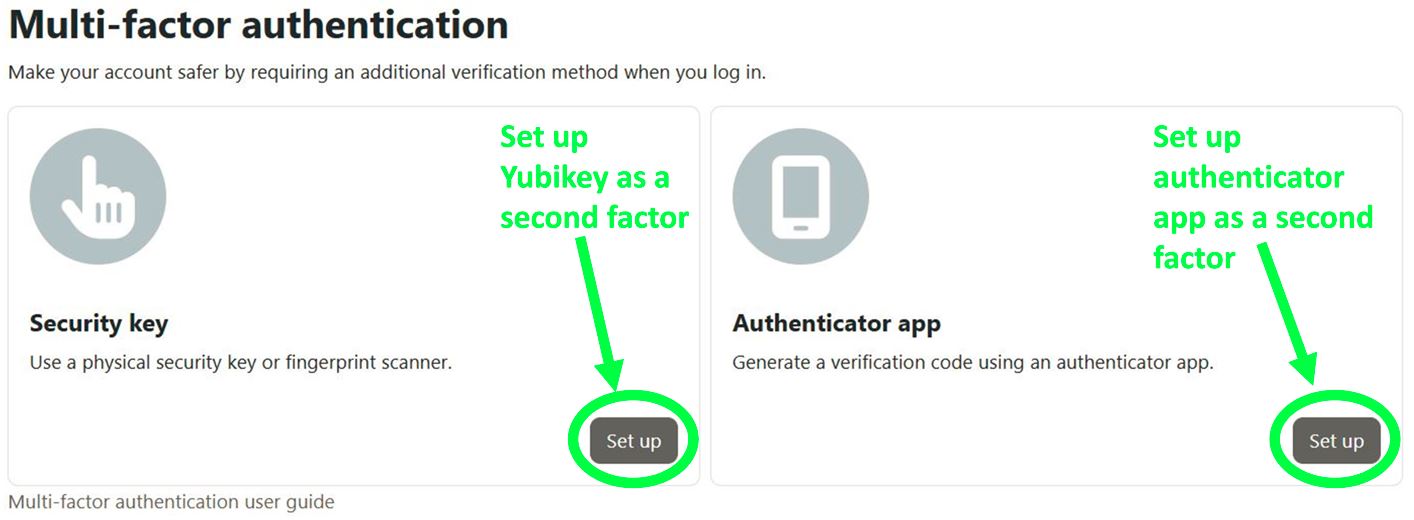
There are two options for the second factor: „Authentication token“ (= Yubikey) or „Authenticator app“. Choose one of the two factors.
- Click the gray
Set upbutton in one of the two sections („Authentication token“ or „Authenticator app“).
Option 1: Yubikey
Register Yubikey
After selecting the „Yubikey“ option, the „Set up Security Key“ page opens:
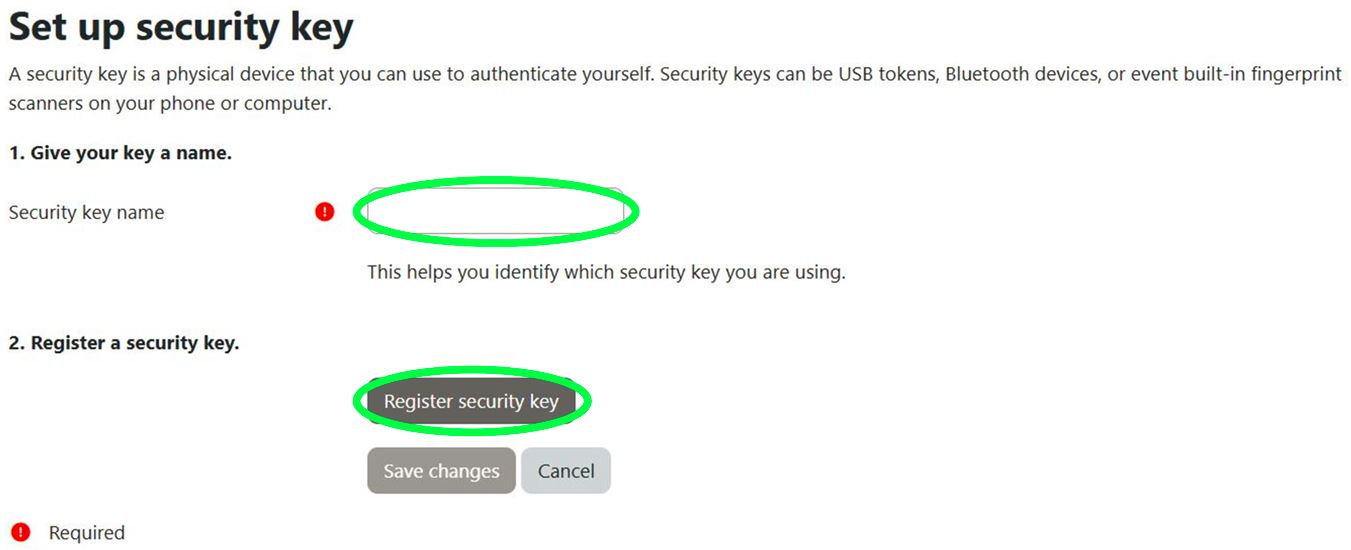
- In the „Name of the security key“ field, enter a unique
Yubikey name. (The name can be chosen freely.) - Click the gray
Register Security Keybutton.
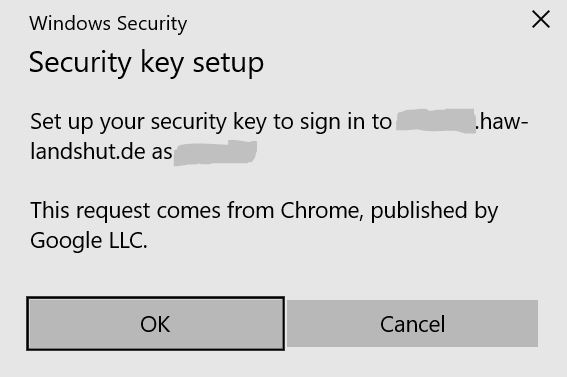
- Confirm the pop-up window „Set up security key“ by clicking
OK.
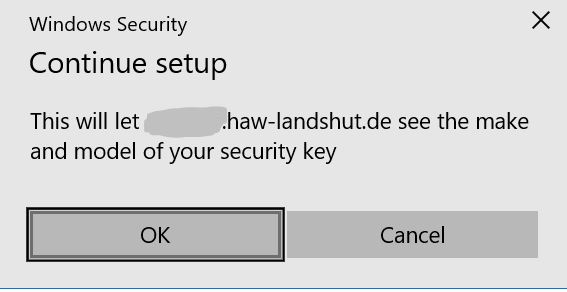
- Confirm the pop-up window „Continue setup“ by clicking
OK.
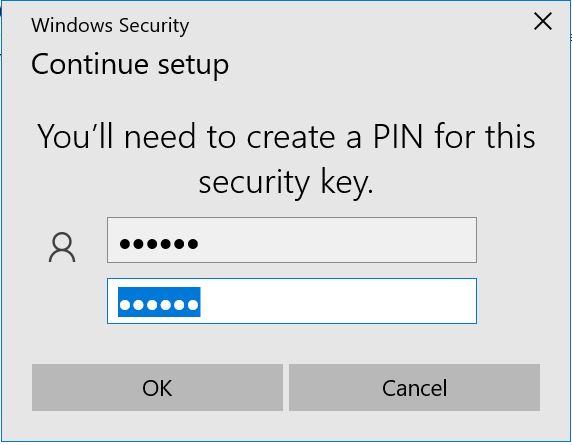
- In the pop-up window „Continue setup“,
enter a PIN. (The PIN can be chosen freely. The PIN will be required later for login.) - Confirm by clicking
OK.
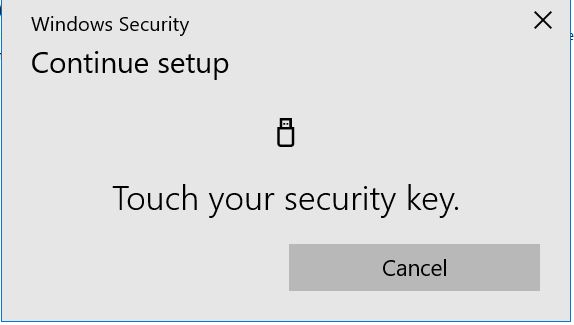
- When the pop-up window „Touch your security key“ appears,
touch the Yubikey in the USB port.
- A pop-up window
mayappear next to the browser’s address bar. Click the blueAllowbutton.
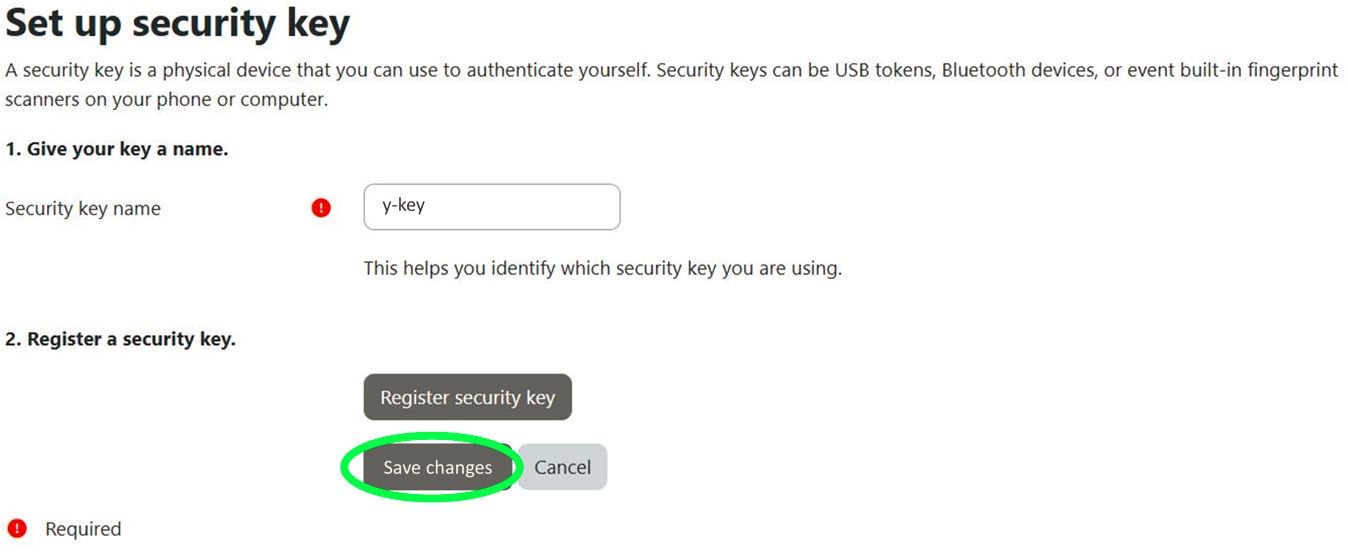
- Click the gray
Save changesbutton.
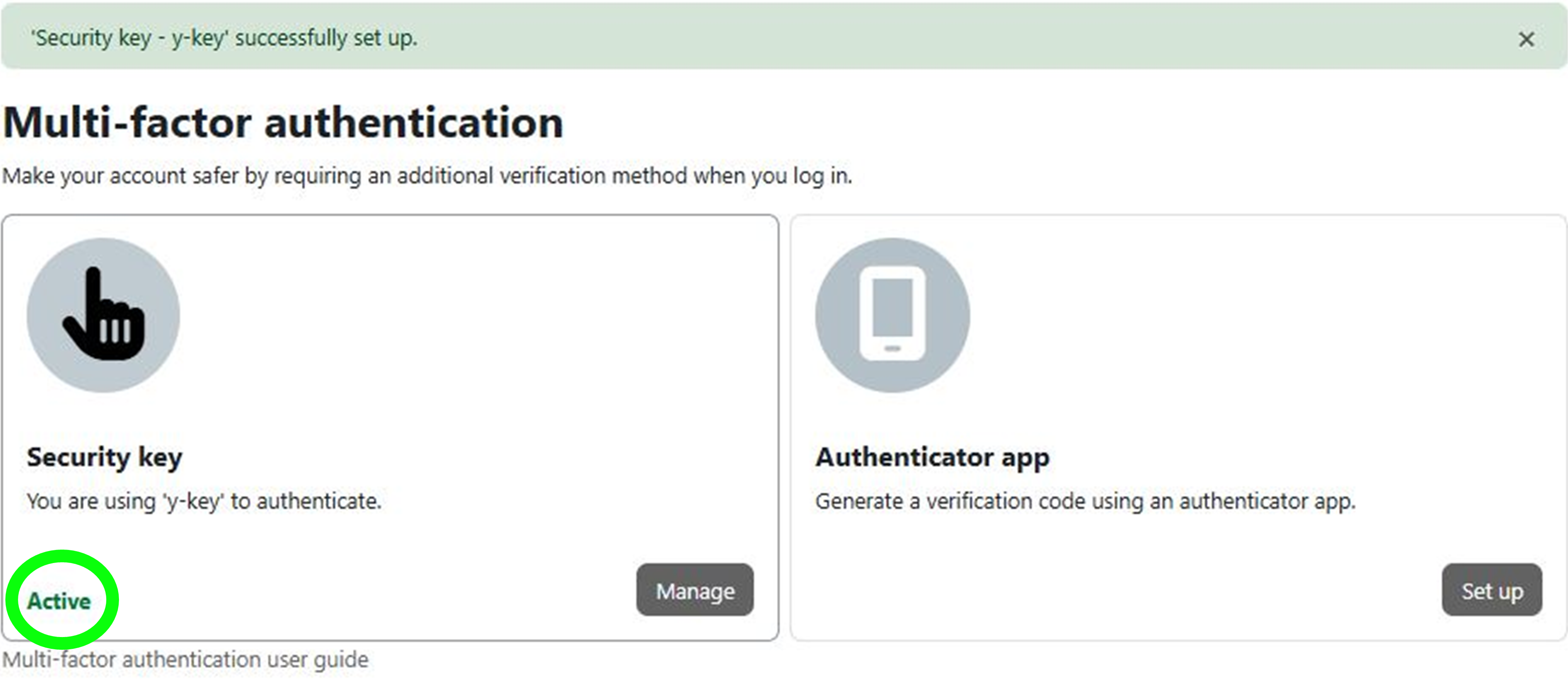
The successful registration of the „Authentication token“ factor (= Yubikey) is indicated by the green „Active“ status.
2FA login with Yubikey
- Log out of Moodle as usual.

- Log in in the „Log in with your Moodle account“ section (not „Use your user account“) by entering your
usernameandpassword. - Confirm your login by clicking
Log in.
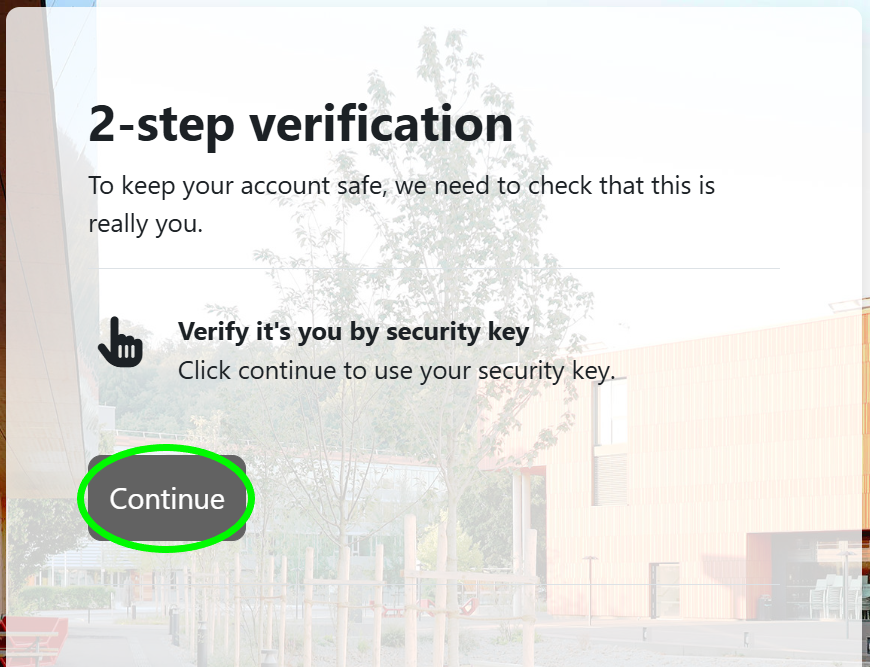
- The „Two-step confirmation“ page opens. Click
Continue.
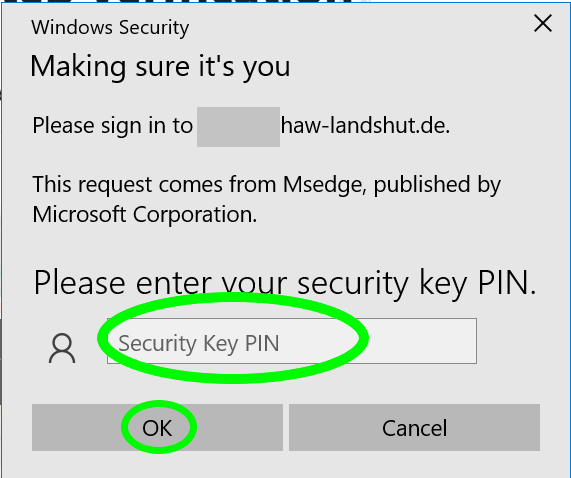
- In the pop-up window „Make sure it’s you“, enter the
PINyou set earlier. - Confirm the PIN by clicking
OK.

- When the pop-up window „Make sure it’s you“ appears,
touch the Yubikey in the USB port.
You are now logged into Moodle as usual.
Option 2: Authenticator app
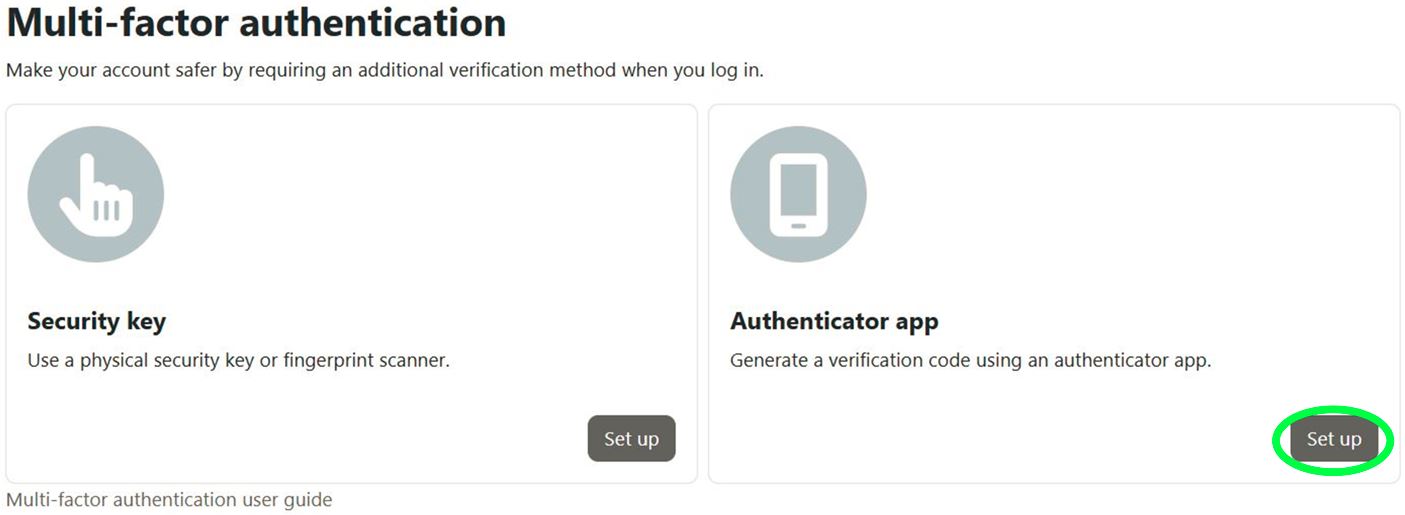
- In the „Authenticator app“ section, click
Set up.
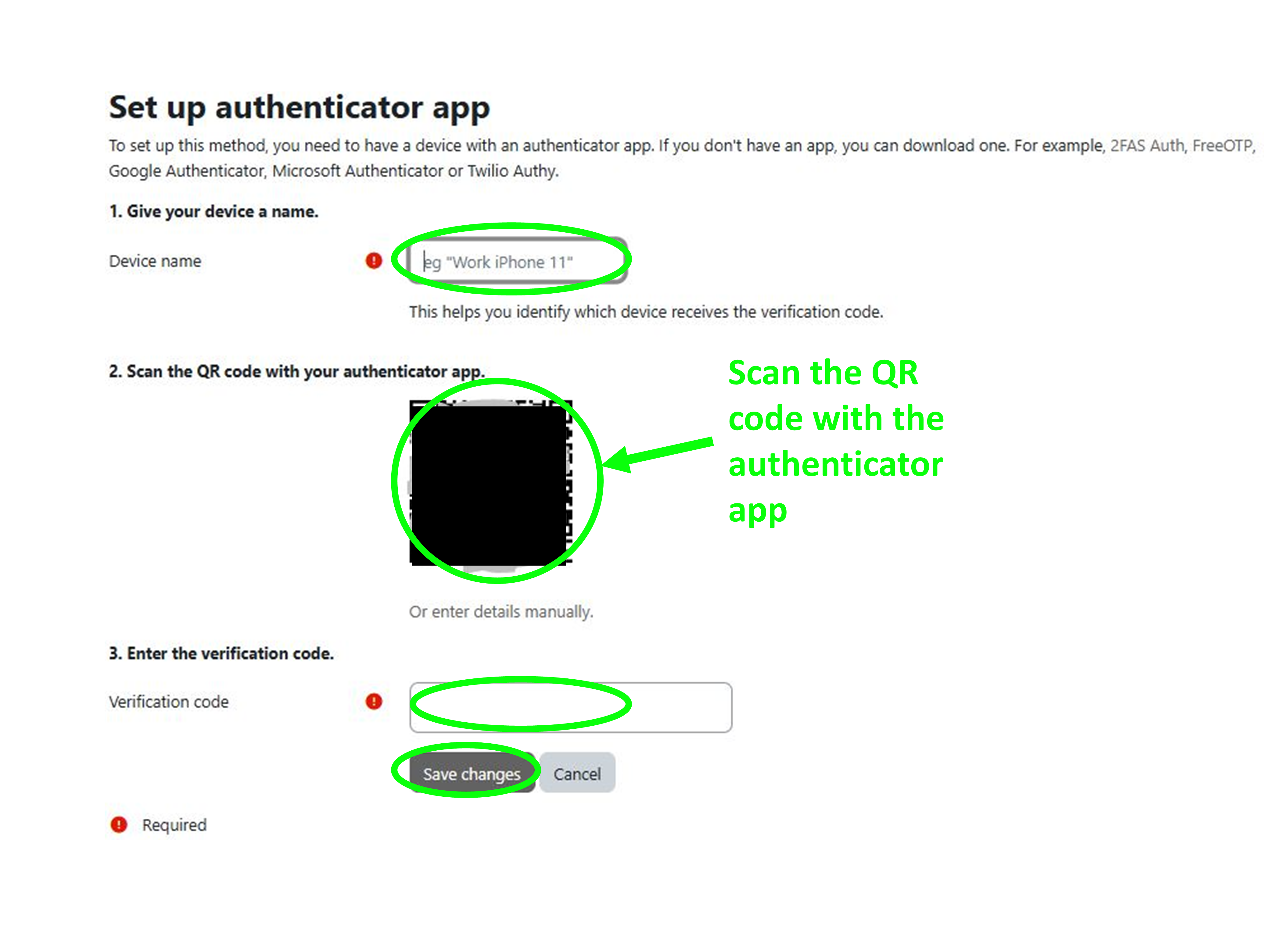
- In the „Device name“ field, enter a
name for the Android device with the authenticator app(can be chosen freely). - Open the authenticator app on the Android device and
scan the QR code from the screen. - The authenticator app will generate a confirmation code. Enter this
code in the Confirmation code field. - Click the gray
Save changesbutton.
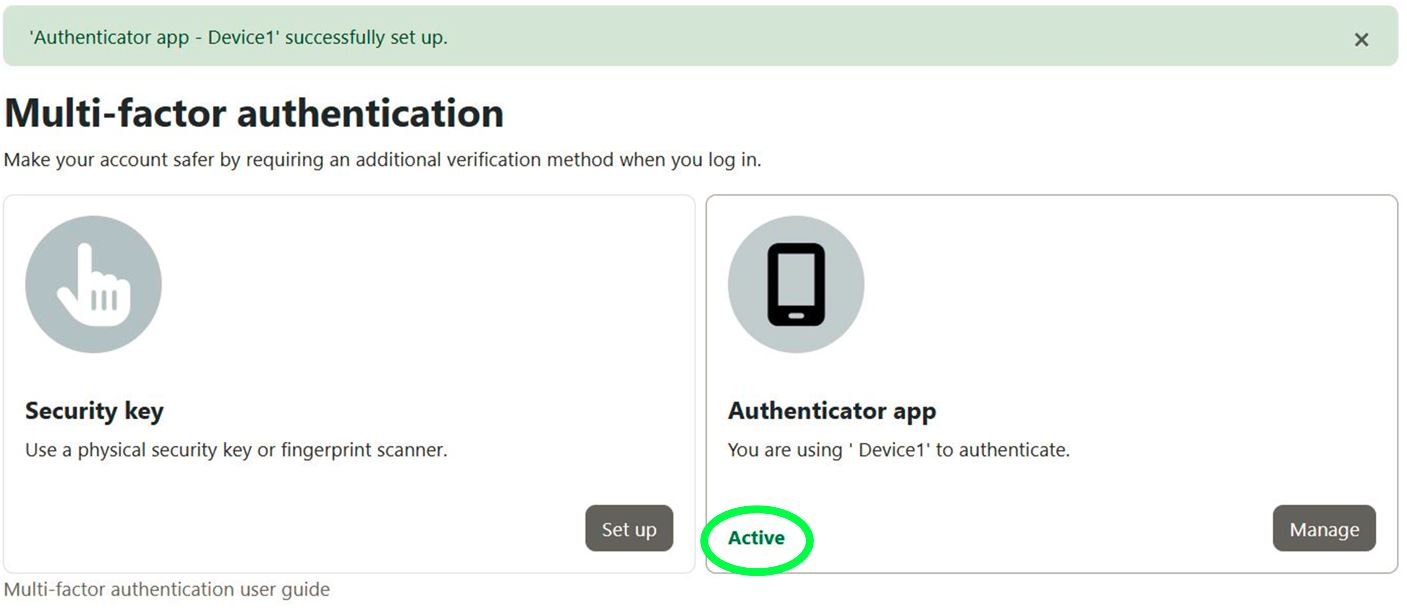 The second factor „Authenticator app“ is indicated by the green „Active“ status.
2FA-Login mit Authenticator-App
* Log out of Moodle as usual.
- Log in by clicking
Log in with your Moodle account(not „Use your user account“).
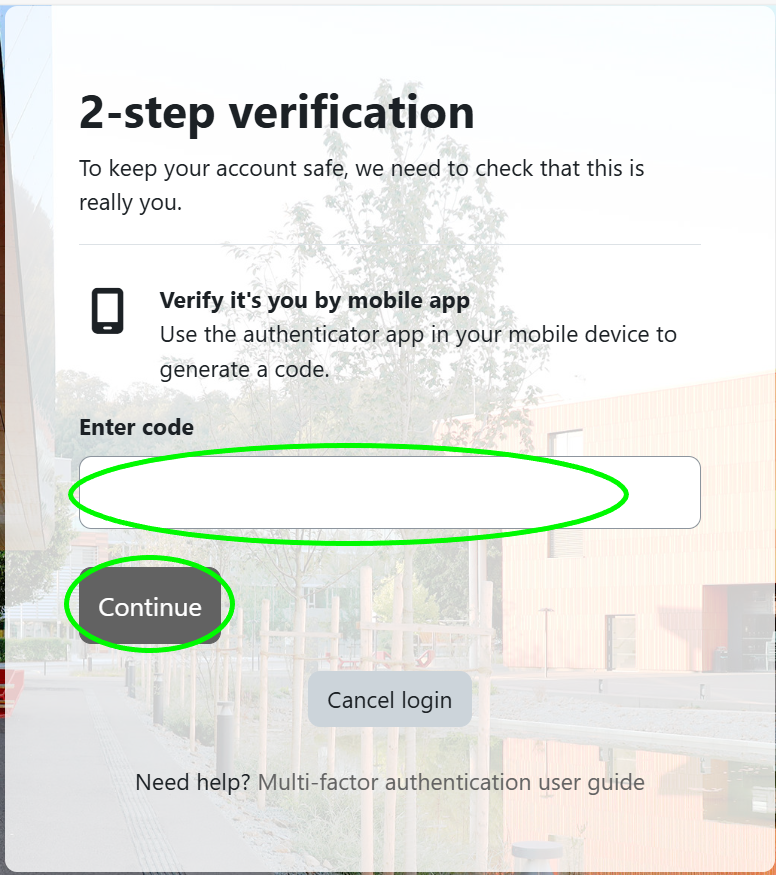
- The „Two-step confirmation“ page opens.
- Open the authenticator app on your Android device.
- Enter the code from the app in the „Enter code“ field.
- Click the gray
Continuebutton.
You are now logged into Moodle as usual.
Managing the two factors
You can also change the second factor (e.g., switch from authenticator app to Yubikey) or add a second „second factor“, so that you can log in using either a Yubikey or an authenticator app.
Switching from authenticator app to Yubikey
First, log in to Moodle with two-factor authentication.
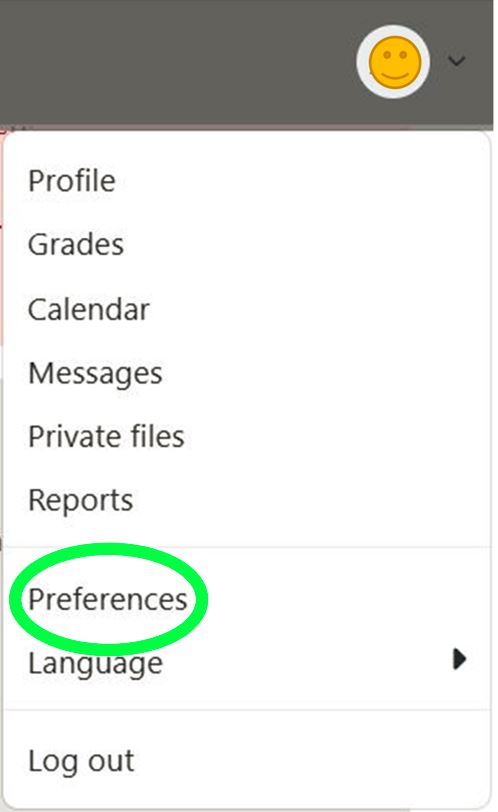
- Click the
circle with the user profilein the top right corner. - A dropdown menu appears. Click the menu item
Preferences.
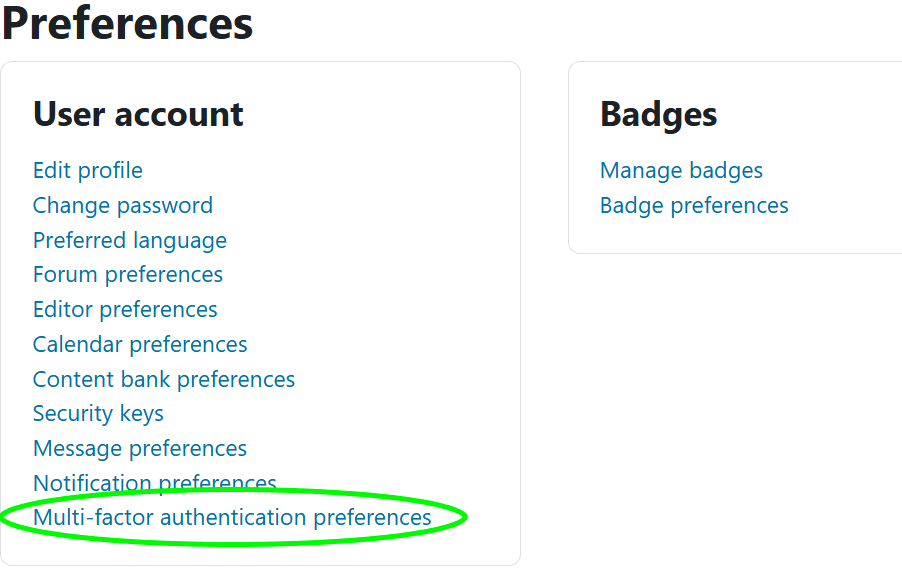
- Click
Multi-factor authentication preferences.
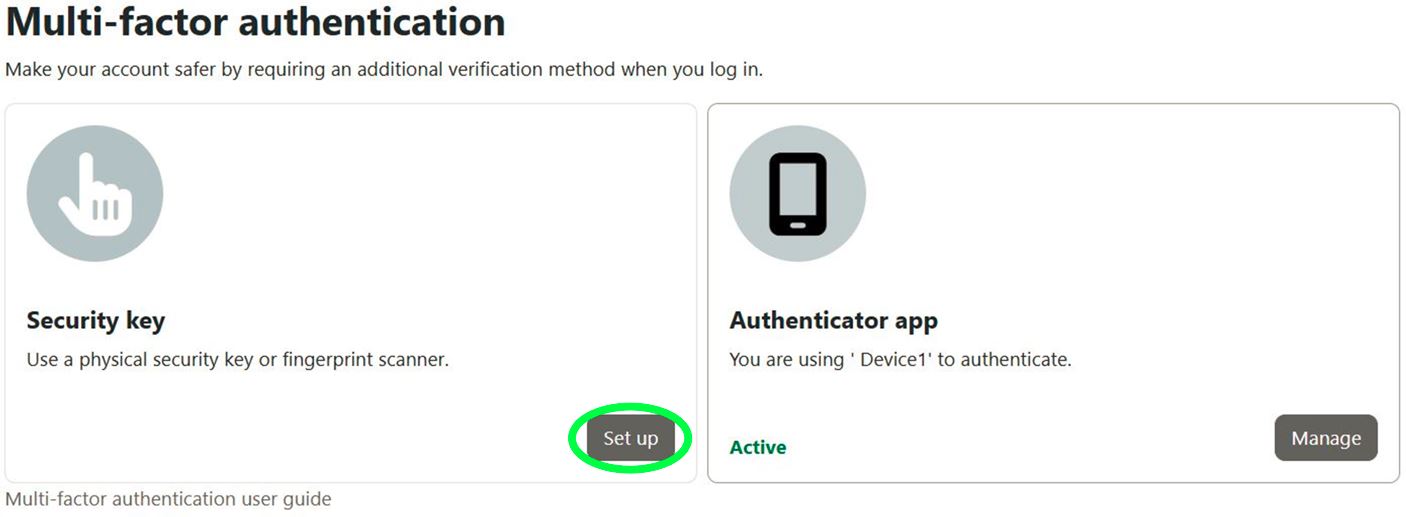
- In the „Authentication token“ section, click the gray
Set upbutton.
Then proceed as described in the Yubikey registration section.
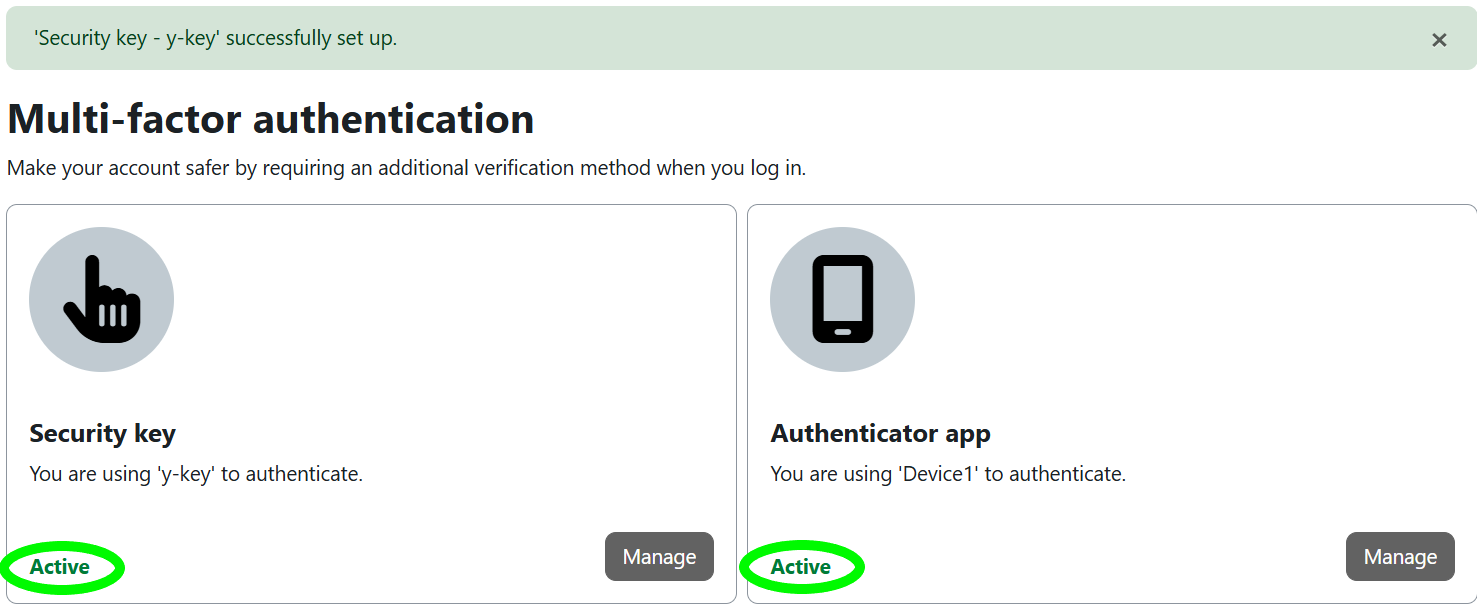
If both factors „Authentication token“ (= Yubikey) and „Authenticator app“ are registered, both sections appear with „green Active“. In this state, both factors can be used as the second factor.
Deactivating the authenticator app
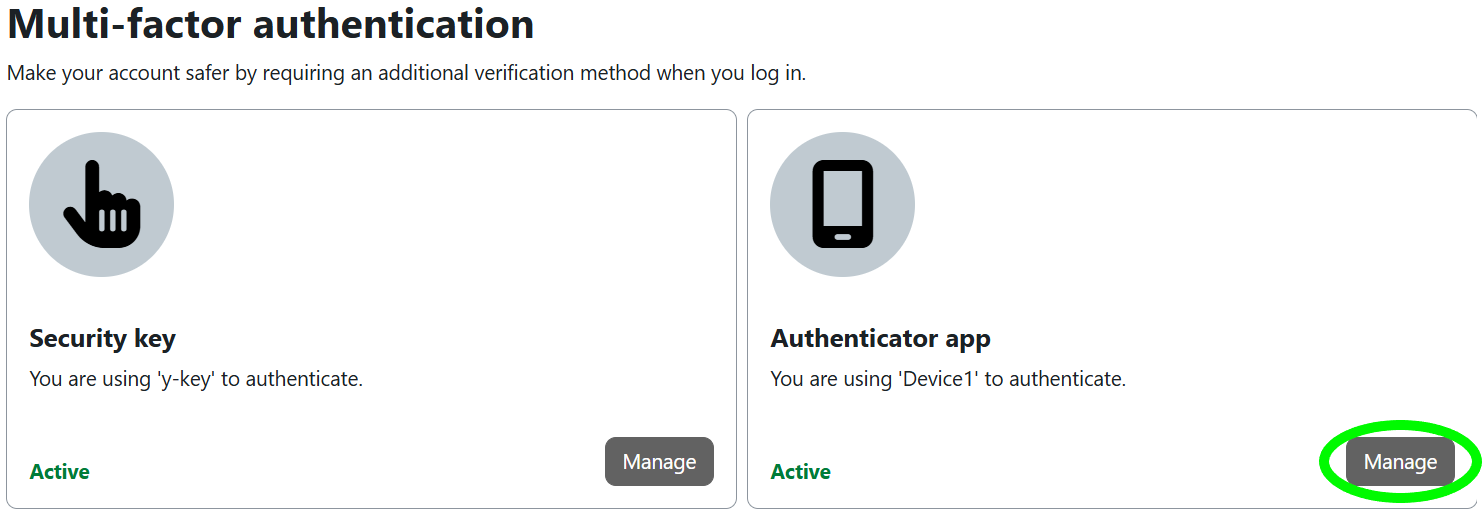
- In the „Authenticator app“ section, click the gray
Managebutton.

- In the „Manage authenticator app“ window, click the gray
Removebutton.
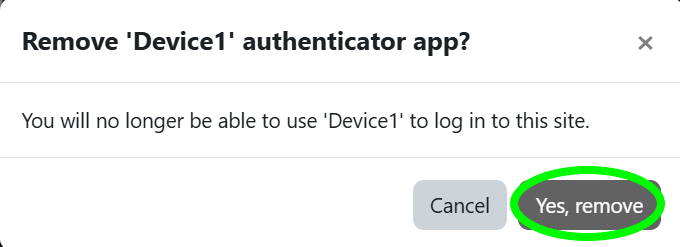
- In the pop-up window „Remove authenticator app“, click the gray
Yes, removebutton.
The registration of the factor „Authentication token“ (= Yubikey) is indicated by the „green Active“ in the corresponding section. The deregistration of the factor „Authenticator app“ is indicated by the absence of „green Active“ in the corresponding section.
Switching from the factor „Authentication token“ (= Yubikey) to the factor „Authenticator app“ works vice versa.