Dashboard
The dashboard in Moodle 4.5.6 provides users with a quick overview of important current information from their learning spaces. On the dashboard you can see updates from Moodle Support and the Center for Innovative Teaching as well as a timeline of your activities.
The dashboard contains a number of predefined blocks. Some of these blocks are located in the middle of the page, others in the right-hand block bar, which you can hide if required (see I. Elements of the dashboard).
All users can individually configure the dashboard according to their wishes and move, remove or add blocks that provide additional information about the learning spaces (see II. Dashboard konfigurieren).

I. Elements of the Dashboard
Predefined blocks:
01. The centrally placed blocks display the following information:
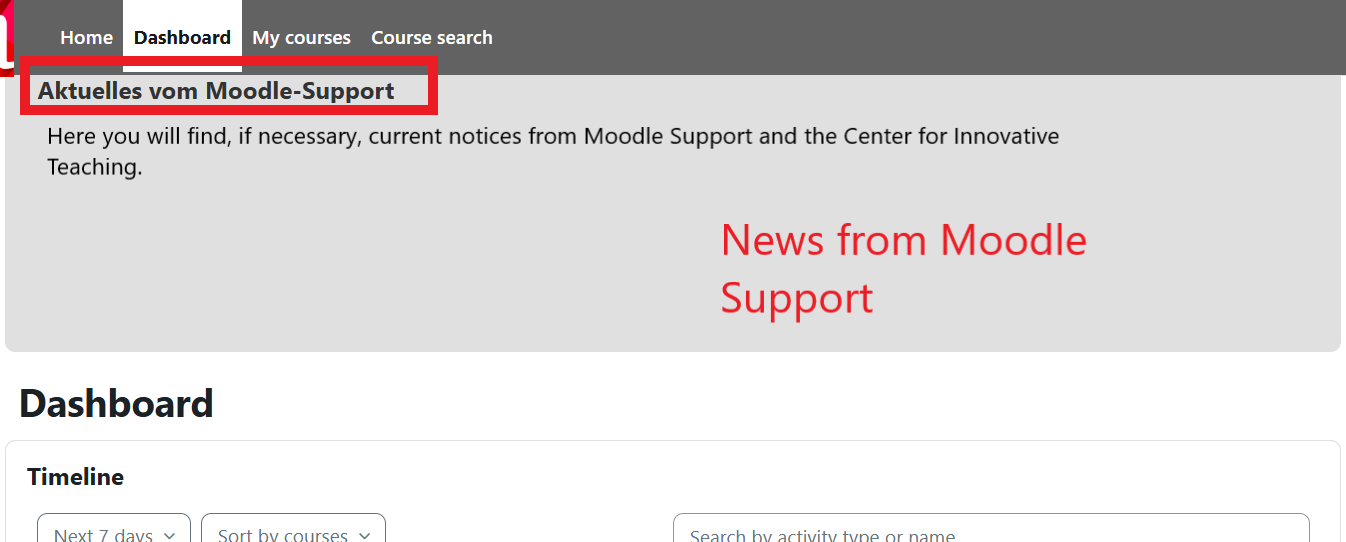
- Latest news from Moodle support
- Timeline
02. The blocks on the right display the following information:
- Calendar
- Evaluations (evasys)
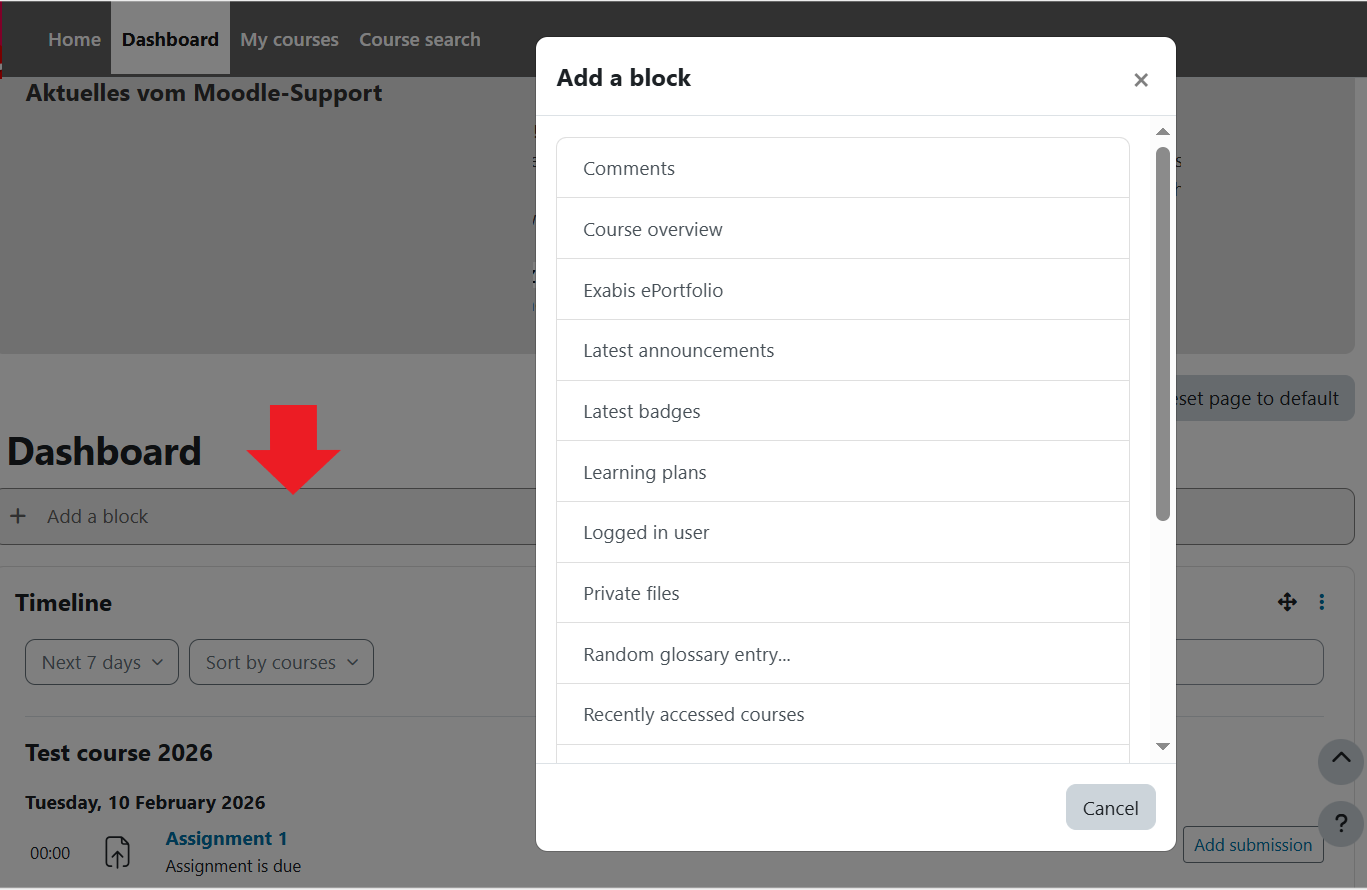
Further blocks (for self-configuration):
- Comments
- Course overview
- Exabis ePortfolio
- Latest announcements
- Latest badges
- Learning plans
- Logged in user
- Private files
- Random glossary entry…
- Recently accessed courses
- Recently accessed items
- RSS feeds…
- Starred courses
- Tags
- Text…
- Upcoming events
Predefined blocks (central):
News from Moodle Support
This block informs students about current information from Moodle Support and the Center for Innovative Teaching (Zentrum Innovative Lehre).
Timeline:
This section displays the upcoming submission dates and deadlines for various learning activities. This mainly concerns students. Managers also have the option here of displaying the task activities for which assessments are due. The submission dates and deadlines can be sorted either by date or by course.

Predefined blocks (right):
 Calendar
The calendar block provides you with a monthly overview of all days on which appointments are planned for your learning rooms.
If you click on „Complete calendar“, an extended view will open. If required, you have the option on this page to add individual appointments that are only visible to you, in addition to the appointments that have been transferred from your learning rooms.
If you have the appropriate permissions in one of your learning rooms, you can also enter group or course appointments that can be viewed by other users. By clicking on „Import and export“ in the calendar block, you can also import appointments into or export them from the calendar.
Evaluations (evasys)
This block is only displayed if you have open evaluations in evasys.

Further blocks (to configure yourself):
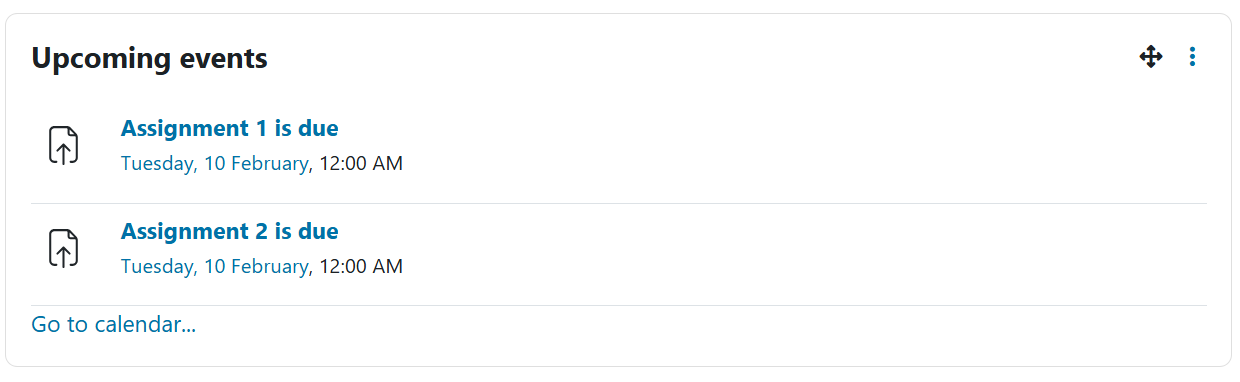 Upcoming events
This section lists the next ten upcoming events according to the calendar.
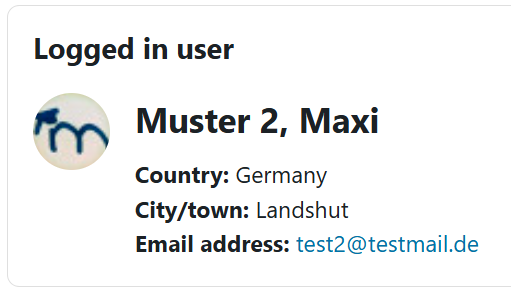 Logged in user
In this block, you have the option to view personal information about yourself.
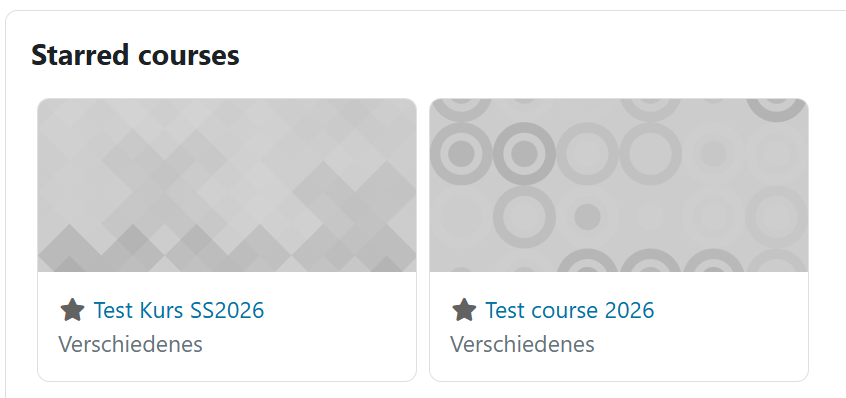 Starred courses
This section allows you to see your favorite courses and access them quickly.
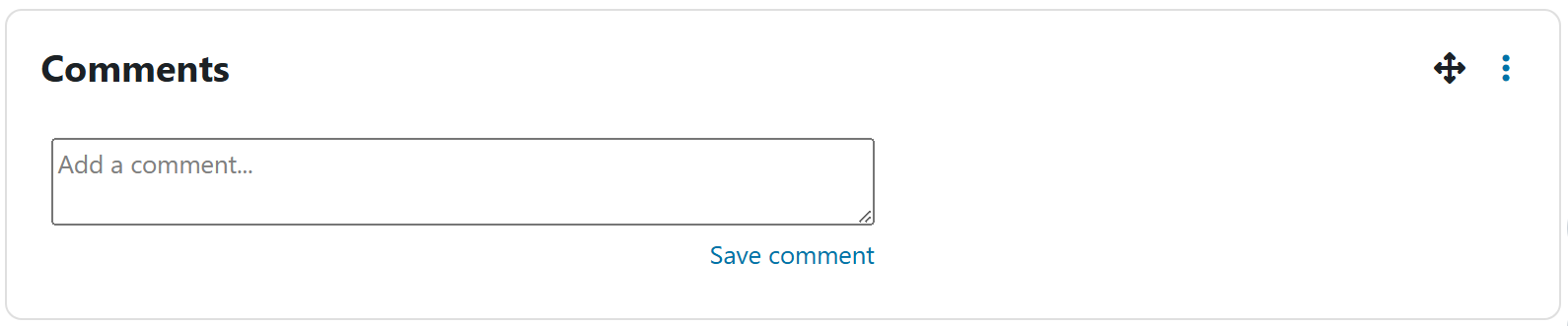 Comments
This block allows you to actively participate in discussions and share your thoughts with other learners. Here you can leave comments on various course content, tasks or topics.
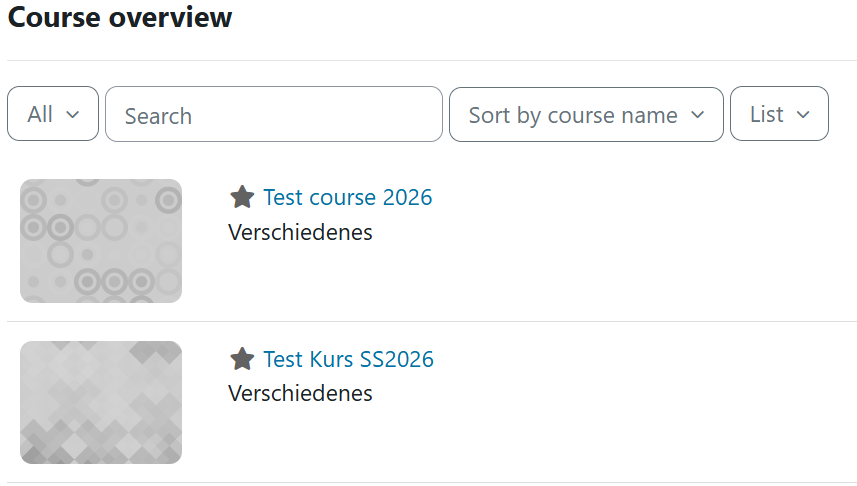 Course overview
Overview of all learning rooms you are enrolled in. This block can be found by default on the My courses page.
 Learning plans
This section provides you with a structured overview of your upcoming learning objectives and activities. Here you can create individual learning plans to organize your study time effectively.
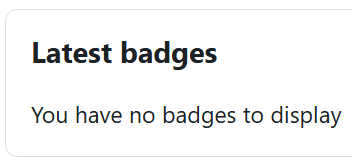 Lastest badges
If you use badges in one of your courses and you have received a badge, it will be displayed here.
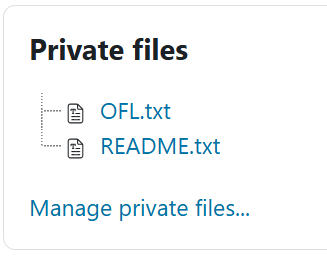 Private files
This block allows access to the personal file area.
 Latest announcements
The Latest announcements block displays the latest posts from the Announcements forum as well as a link to older posts.
RSS-Feeds
RSS (Really Simple Syndication) feeds in Moodle allow users to stay up to date on new posts in forums, glossaries, and other events in Moodle.
An RSS Feeds block allows you to display RSS feeds from Moodle or external websites on a Moodle page.

 Tags
Tags
This block allows you to organize your learning content and quickly find relevant materials. Here you can add keywords or tags to your courses, assignments or notes. These tags serve as helpful labels that make it easier for you to find specific topics or resources later.
Textblock
Text block for custom placement of text and images.

Random glossary entry
The Random glossary entry block enables the randomized display of individual glossary entries. However, this requires that at least one glossary is available in the course or on the start page.

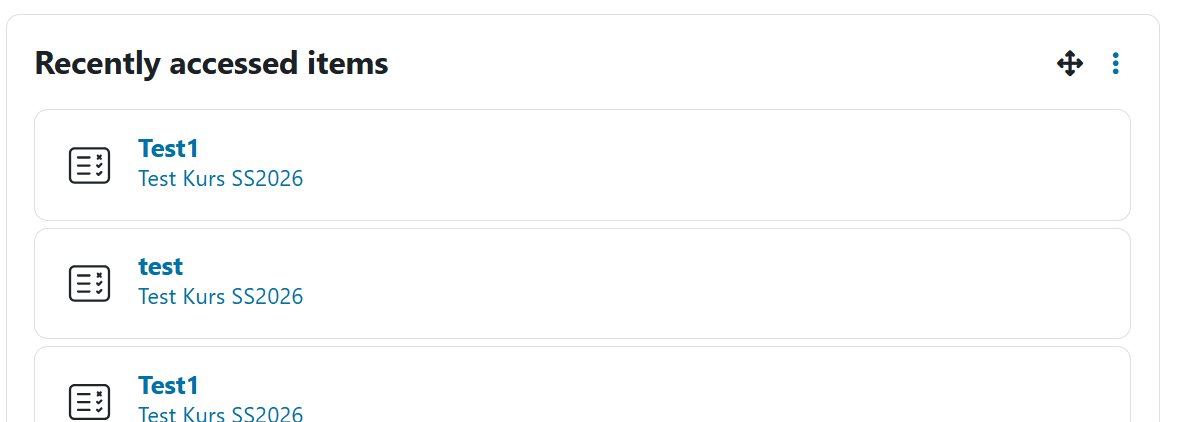 Recently accessed items
Displays the 10 activities you accessed most recently.
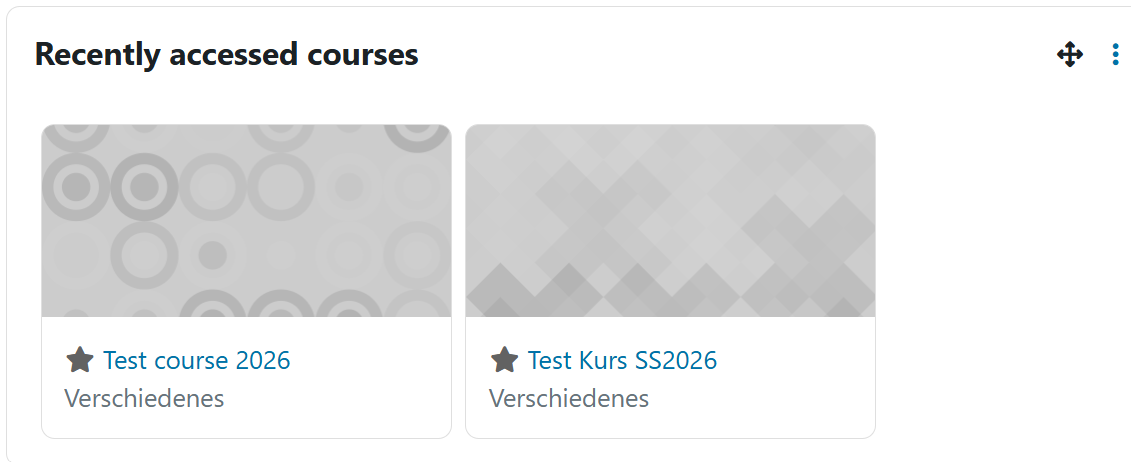 Last visited courses
Display of the 10 most recently visited learning rooms.
II. Configure dashboard
1. Switch the dashboard to edit mode using the „Edit“ slider next to your name in the top right corner.
2. Click „Add block“ in the desired block region and select the desired block. (Center of the page or right block bar)
3. To move a block, click on the double cross in the top right of the block and drag it to the desired position.
4. You can also move content from the content area in the center of the page to the right block bar and vice versa
Foto
If you click "Restore defaults", the added blocks will be deleted and only the predefined standard blocks will remain.