Inhaltsverzeichnis
Manage your own course category
Note: Each lecturer has their own course category in Moodle within their faculty under “Teaching events”. If you are new at the university and do not yet have your own course category, please contact the Moodle support.
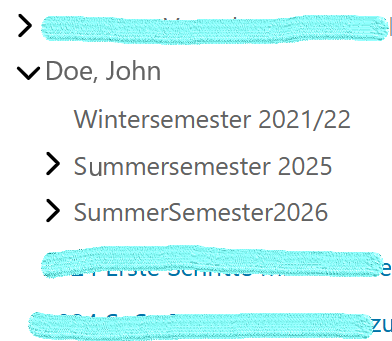
 New as of WiSe 2025/26: From the winter semester 2025/26 onwards, you will have the so-called
 manager role in your own course category and can therefore manage your courses for the coming semesters yourself, including independently duplicating an old course or moving it to a new semester.
Navigation
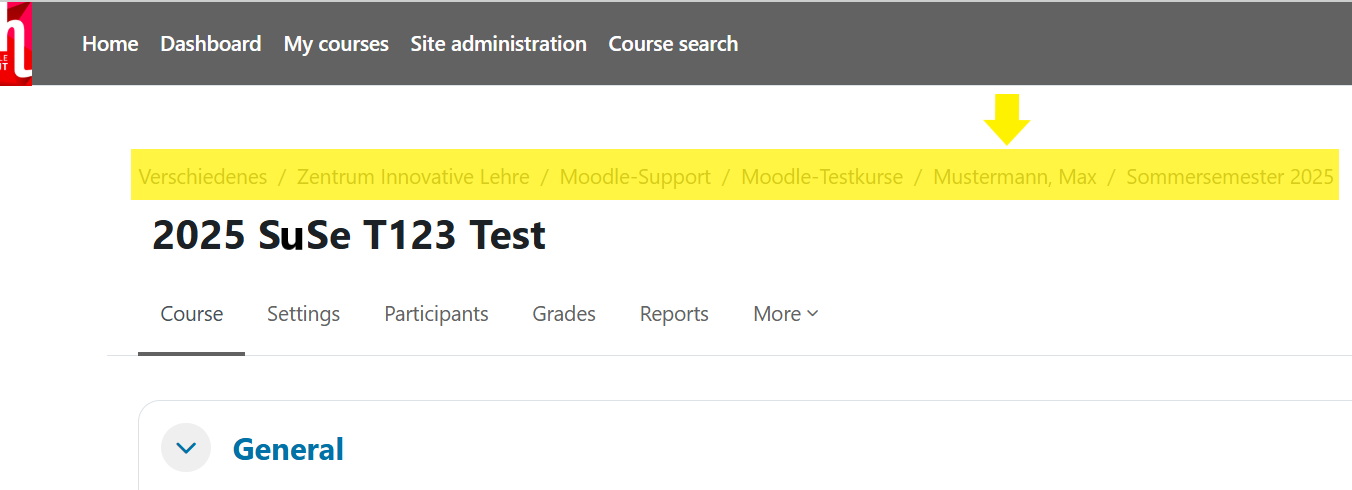
You can access your own course category most easily via the so-called breadcrumb in one of your courses.
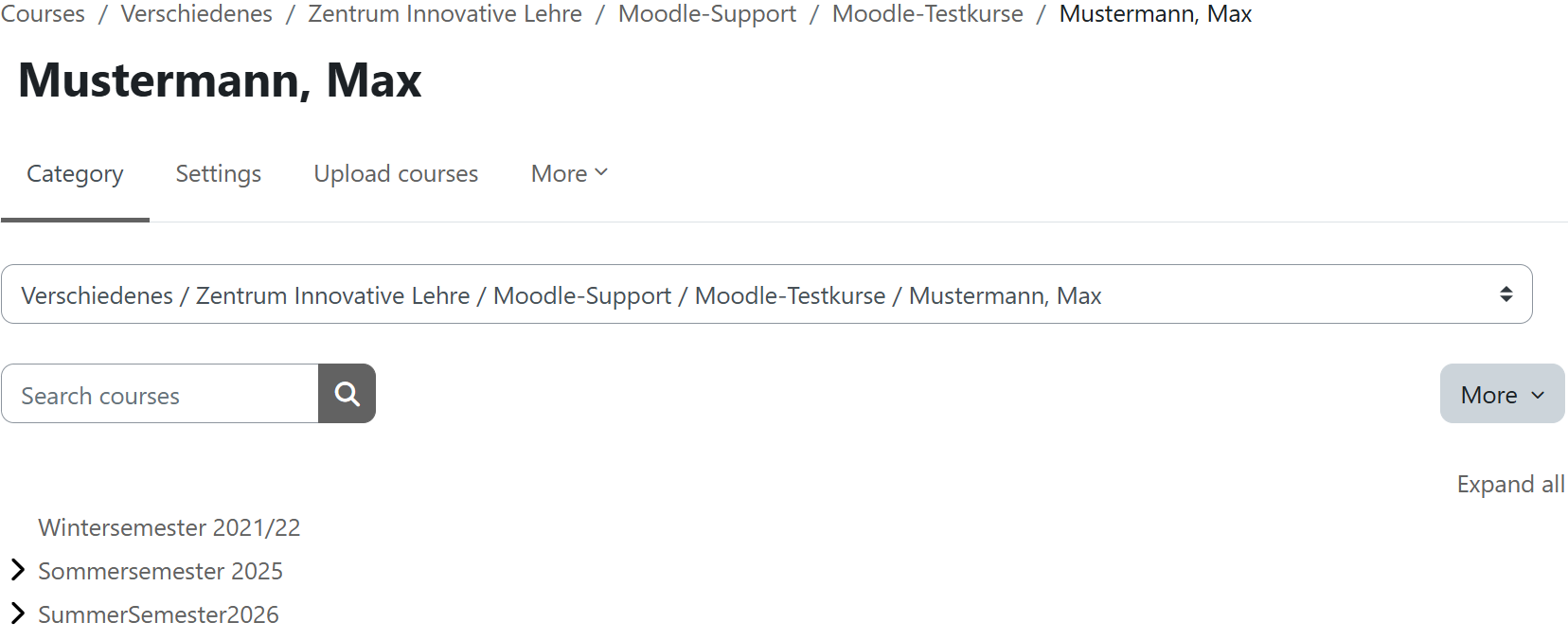
Alternatively, on the start page select the tile of your faculty > Teaching events > your course category.
Manage course category and courses
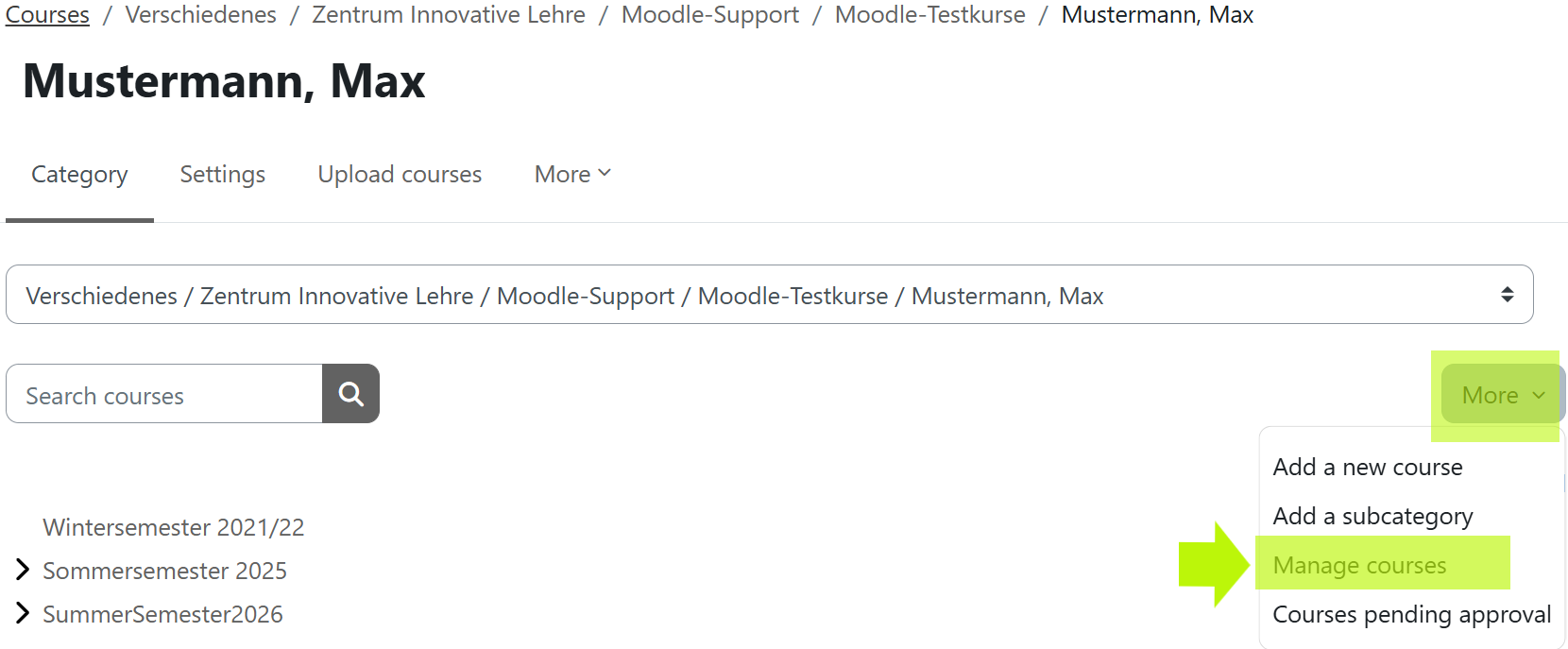
To manage your courses in your own course category, select the option More and then select Manage courses from the dropdown menu.
You will then see your course category with the sub-course categories of the individual semesters in editing mode.
Note: You only have editing rights for your own course category; the course category of others are only listed.
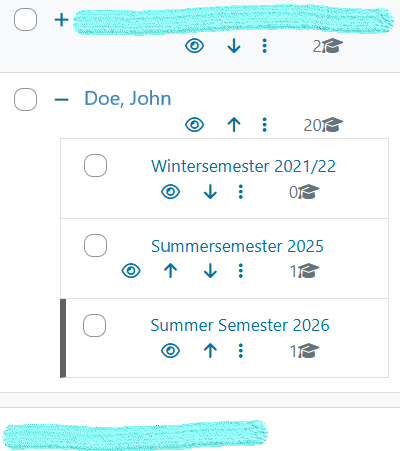
Click on a semester to see the courses contained within it listed.
Explanation of symbols

Edit course settings: The course settings are opened and can be edited
Duplicate course: Create a course duplicate for the coming semester
Delete course: Course is deleted if it is no longer needed
Hide course: Course is made invisible for participants
Move course: Change course order
Move course: Move course
Select/mark course: Select course